

Before you start
- The candidate must be Interviewing. Send offer doesn’t show for other statuses.
- A candidate has one open offer at a time. You can send a new one after the last one is declined, rescinded, or expired.
- To email the offer from Hotfix, connect Google Workspace under Settings > Integrations. Without it, you can still create the offer and copy its link. See Integrations.
Set up a letter template
Save the letters you send often as templates under Settings > Templates, on the Offer tab.1
Create the template
Click New template. Give it a Name and write the Letter. A new
template starts from a short default letter you can edit.
2
Add tokens
Use Insert token in the letter’s toolbar to insert details that change
per candidate. They fill in when the candidate opens the offer.
3
Save
Click Save.
Use your own fields
You can also put your own fields in a letter, like a signing bonus or a manager’s name.- Go to Settings > Fields and open or create a field.
- Under Used in, check Offer letters.
- Save the field.
Send an offer
1
Open the candidate
In the inbox, open the candidate’s record. See Candidate
record.
2
Click Send offer
In the details panel, click Send offer.
3
Write the letter
The Letter starts filled in with your default offer letter. Pick another
Letter template to replace it, or edit the letter directly.
4
Fill in the terms
Enter the Pay and Start date. Both are required. Set an Expiry
and Notes if you want them.
5
Write the email
Pick an Email template, then edit the Subject and Email. The
email must include the Offer link token.
6
Send
Click Send offer. Hotfix creates the offer and emails the candidate.
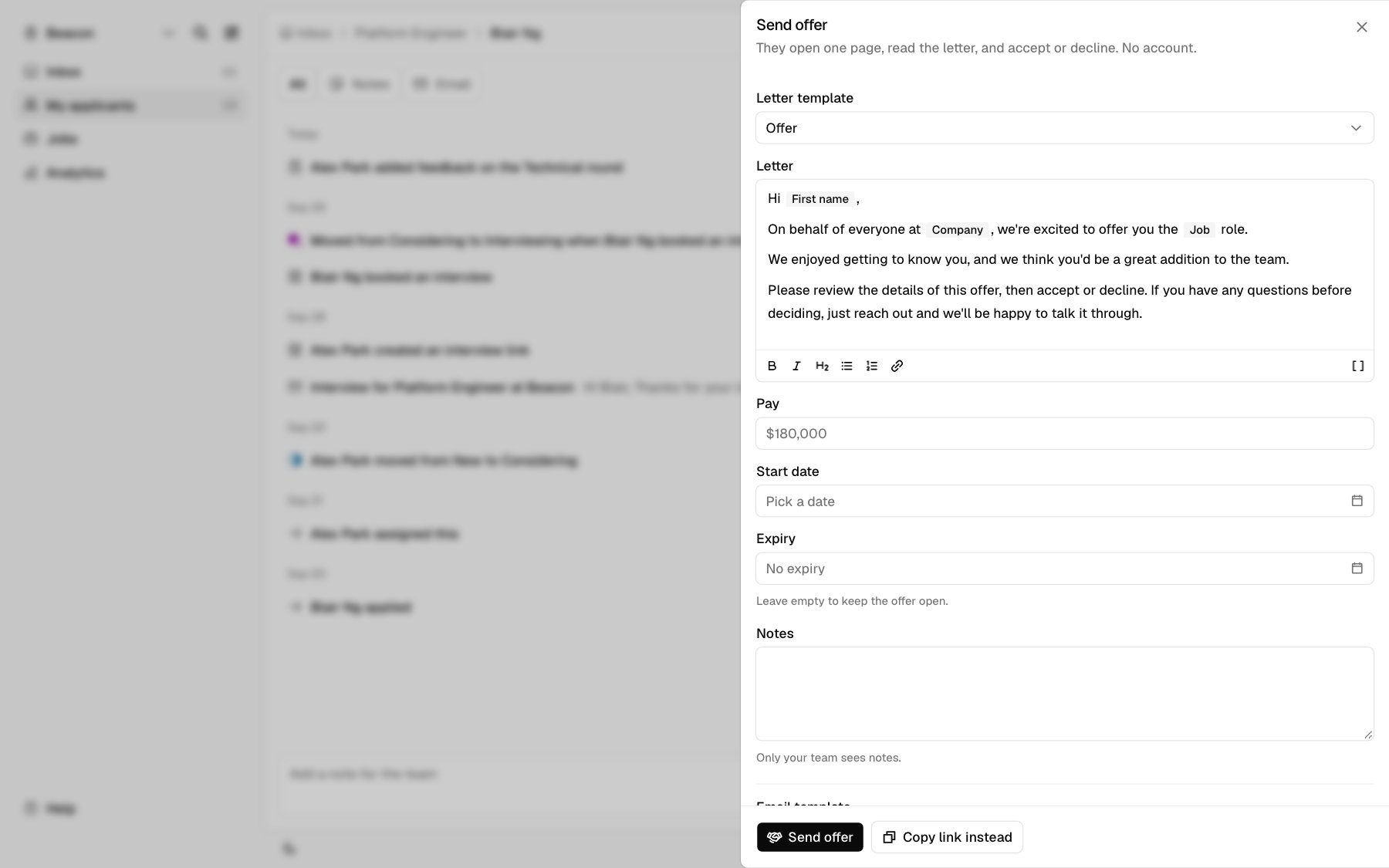
Offer fields
What the candidate sees
The offer link opens a page with your company, the letter, the pay, and the start date. If you set an expiry, it shows the date to respond by and how many days are left.- To accept, they click Review and sign, type their full name, and click Accept offer. The page says that typing a name records acceptance and is not a legal e-signature. After accepting, they can save a copy of the page.
- To decline, they click Decline, then Decline offer to confirm.
After they answer
The offer shows as a line in the candidate’s details panel.
A declined or expired offer doesn’t move a Hired candidate back.
Click the offer line under Offer to act on it:
- View offer opens the candidate’s page. Available while the offer is waiting, and after it’s accepted.
- Copy link copies the offer link. Available while the offer is waiting.
- Rescind withdraws an offer that’s still waiting.
Rescind an offer
1
Open the offer menu
On the candidate’s record, click the offer line under Offer, then
Rescind.
2
Confirm
Click Rescind offer. To back out, click Keep offer.
Related
- Schedule interviews before you make an offer.
- Integrations to connect Google Workspace.
- Webhooks to get an alert when an offer is accepted or declined.
- To send offers from your own tools, see Offers and mail for the API and MCP.