

To set up the form for one job, like which details to ask for and your screening questions, see The application form.
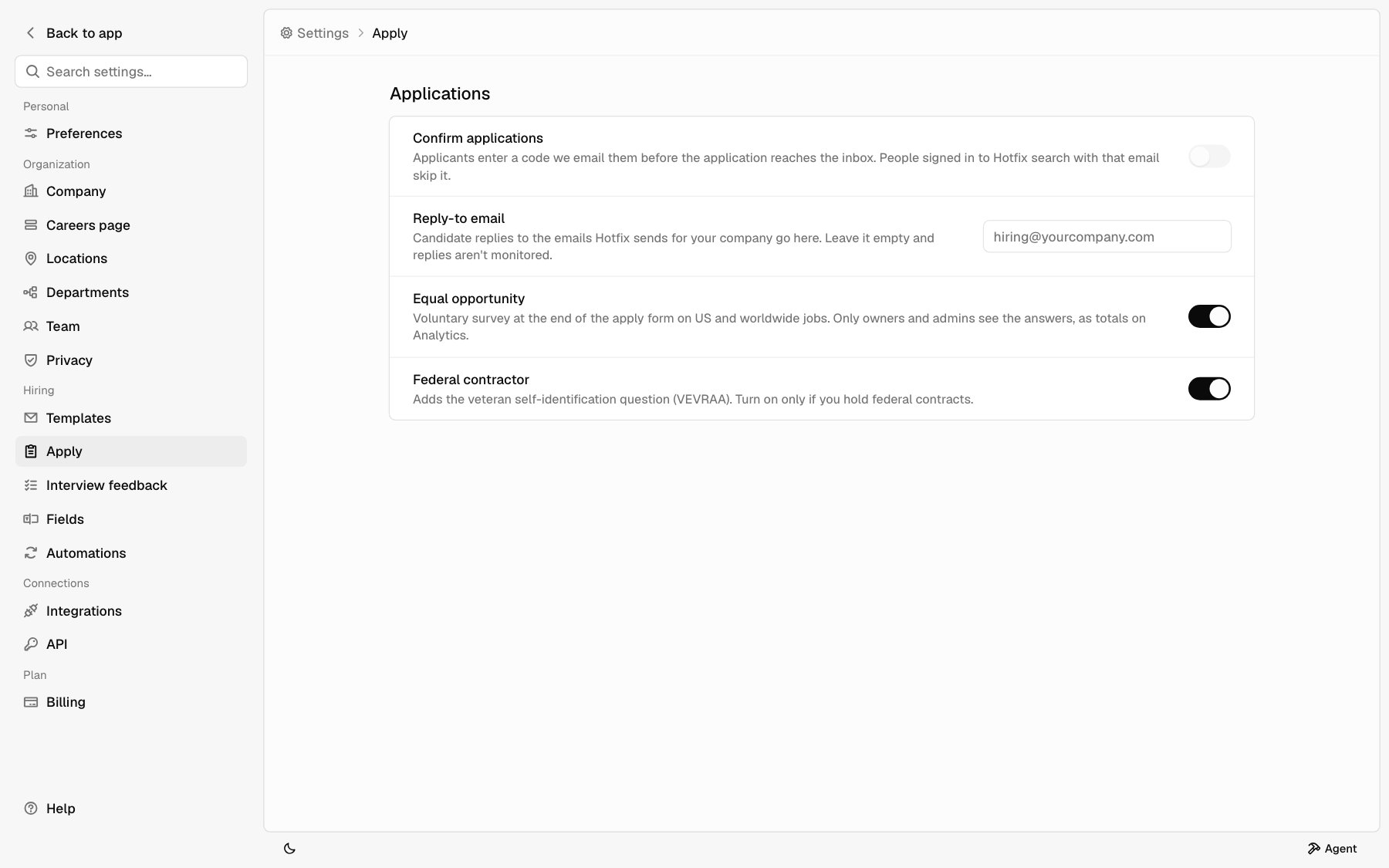
Confirm applications
Turn on Confirm applications to make applicants prove they own the email they applied with. It keeps fake and mistyped applications out of your inbox. With it on, here’s what an applicant sees after they submit:1
Check your email
The apply page shows Check your email. Hotfix emails the applicant a
6-digit code and a confirm link.
2
Enter the code
The applicant types the code on the apply page. The code expires in 15
minutes. The link in the email confirms too, and keeps working for 48 hours.
3
Get a new code if needed
If the code expired or never arrived, the applicant clicks Resend code.
Who sends the code
Hotfix sends the code email for you. It comes from no-reply@hotfix.jobs and shows as your company name followed by “via Hotfix”, like “Acme via Hotfix”. You don’t need Google Workspace connected.The Application received email
Everyone who applies gets an email saying you received their application. If Confirm applications is on, it goes out after they confirm. The email uses your Application received template. Edit the wording under Settings > Templates. See Templates. Like the code email, Hotfix sends it from no-reply@hotfix.jobs as “your company via Hotfix”. Google Workspace isn’t needed.Reply-to email
Reply-to email decides where candidate replies go when they answer the emails Hotfix sends for your company: the confirmation code and the Application received email.1
Type an address
Enter an email like
hiring@yourcompany.com.2
Save it
Press Enter or click outside the box.
Email you send from the inbox works differently. It goes out from your own
Gmail through Google Workspace, so replies come back to you there. See
Integrations.
Equal opportunity
Turn on Equal opportunity to add a voluntary equal opportunity survey to the end of the apply form. It applies to every job, not one at a time.Which jobs show it
The survey shows on:- Jobs in the United States, by country or by location
- Worldwide jobs, with no countries and no locations
What candidates see
A section called Voluntary self-identification at the end of the form. It starts with your company’s equal opportunity statement and explains that the questions are voluntary, are kept apart from the application, and don’t affect how it’s considered.
The survey doesn’t ask about disability.
Every question also offers I don’t wish to answer, and every question can be left blank. Leaving them all blank doesn’t stop anyone from applying.