

- Show on every candidate record, where your team fills it in. See Custom fields on the record.
- Be asked as a question on your apply forms, so candidates answer it.
- Fill in as a token in email templates and offer letters.
- Filter the inbox. See Filter by a custom field.
The fields list
Each row shows the field’s Name and icon, its Type, and its Use:- Team and candidates means it’s offered on apply forms.
- Team only means only your team fills it in.
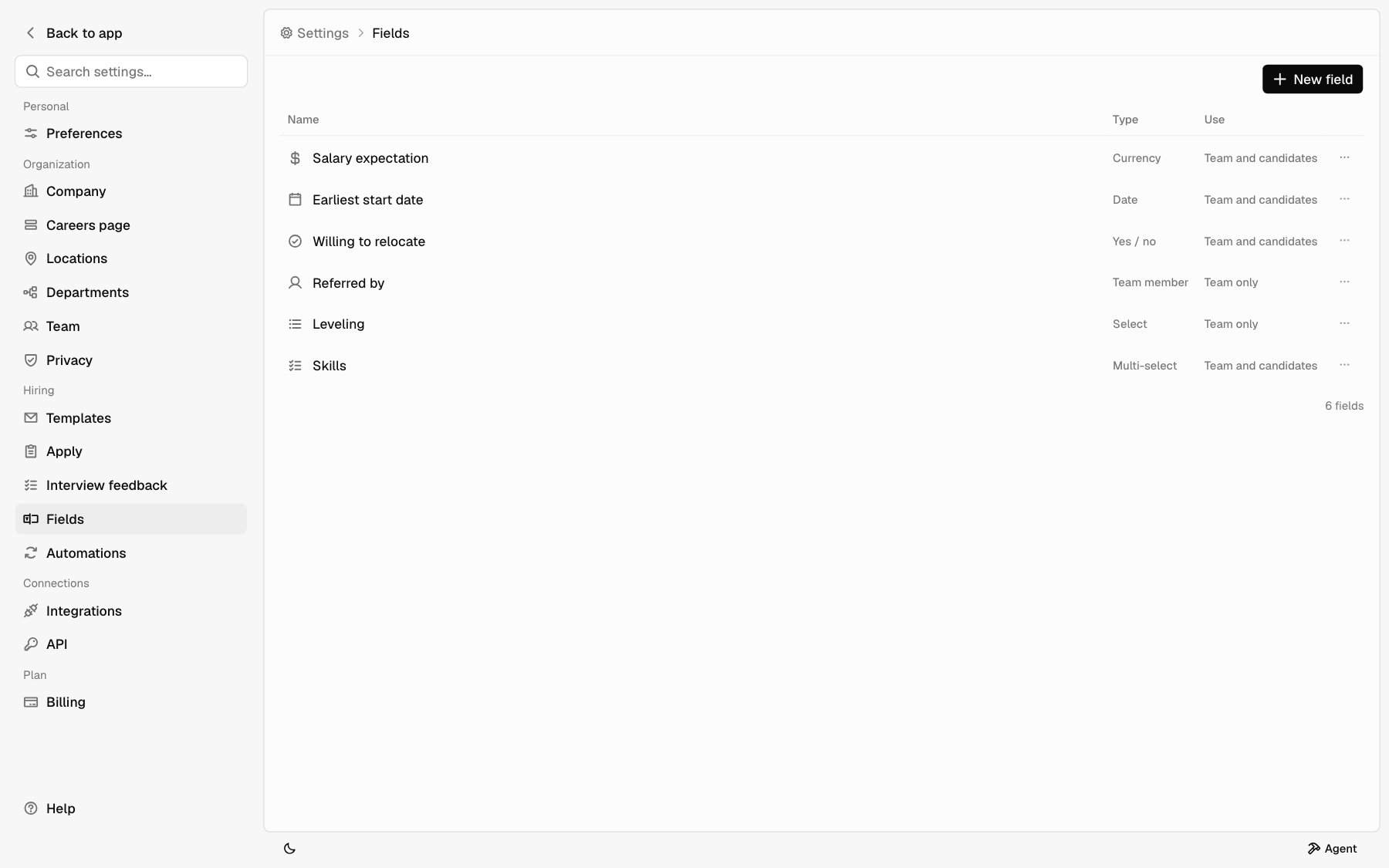
Fields you start with
Your company starts with four fields. Edit or delete them like any other.
A starting field you delete doesn’t come back.
Create a field
1
Click New field
Go to Settings > Fields and click New field. The New field
panel opens on the right.
2
Pick a type
Under Type, pick one. Each type says what it holds, with an example.
See Field types. You can’t change the type after you save.
3
Name it
Type a Name, up to 60 characters. Each field needs a different name.
A Currency field also asks for its currency, and a Select for its
options.
4
Pick an icon (optional)
Click the button left of the name to pick an icon. The first one is the
type’s own icon, used when you don’t pick one.
5
Choose where it's used
Check the boxes under Used in. See Used in.
6
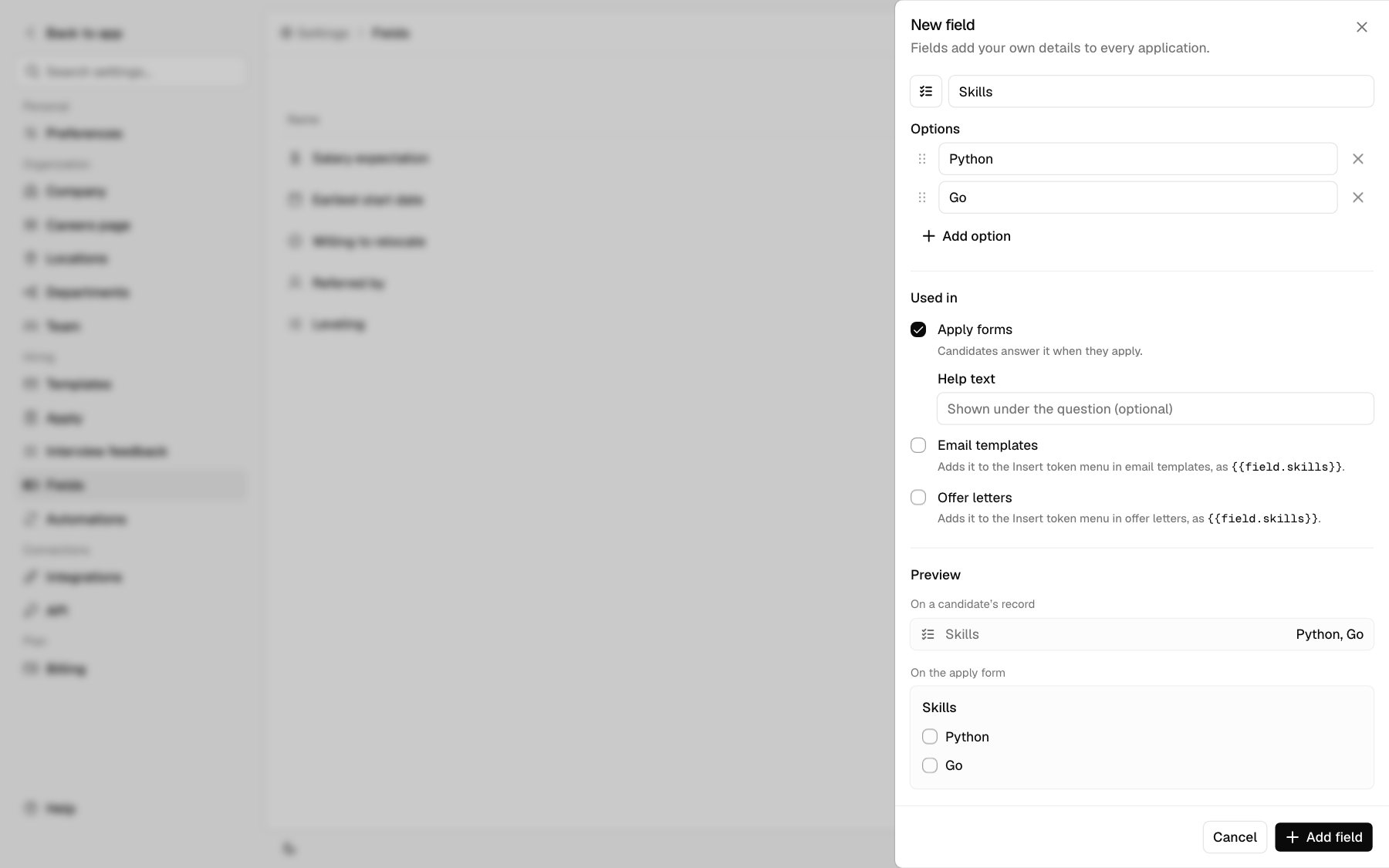
Check the preview
Preview shows the field’s line on a candidate’s record, with a sample
value. With Apply forms checked, it also shows the question as
candidates will see it.
7
Add it
Click Add field.
Field types
Every value in a Currency field is in the field’s currency. Amounts are never converted.
For a Select or Multi-select, click Add option for another option, or press Enter in the last one. Click the x next to an option to remove it; there are always at least two. To change the order the record and apply form list them in, drag an option by its handle, or focus the handle and use the up and down arrow keys.
On a candidate record, a Multi-select shows the chosen options, like Python, Rust. Click it and check or uncheck options; the change saves when the menu closes. On an apply form, candidates check every option that applies. In a token, the options read the same way, separated by commas.
Used in
Used in doesn’t show for a Team member field.
Ask it on an apply form
Checking Apply forms doesn’t add the question to any job by itself. Open a job, go to Application > Questions, click Add question, and pick the field under From your fields. See Questions. The candidate’s answer fills the field on their application. A small person icon on the record shows the value is still their own answer.Use it as a token
Once Email templates or Offer letters is checked, the field shows under Fields in the Insert token menu. It fills in with the candidate’s value, or blank when they have none. See Templates and Send offers.What Hotfix checks in a name
Hotfix won’t save a field that asks about a protected characteristic, like age, gender, race, religion, disability, or veteran status. Use the equal opportunity survey under Settings > Apply instead. See Apply settings. Hotfix warns you, but still lets you save, when:- The name asks about current or past pay. Some states and cities ban asking about it.
- The name matches something Hotfix already tracks, like source, status, assignee, notes, resume, or phone.
Edit a field
Click the field, or click ⋯ on its row and pick Edit. Make your changes and click Save. You can change the name, icon, options, currency, help text, and Used in. The type shows at the top but can’t be changed. To use a different type, create a new field. A field keeps its token when you rename it.- Renaming a field or an option keeps every value already saved.
- Removing an option from a Select or Multi-select takes it off every application that had it. A select left without a value is cleared.
- Unchecking Apply forms takes the question off every job’s application. Values already saved stay on the record.
Reorder fields
Click ⋯ on a row and pick Move up or Move down. Fields show in this order on the candidate record.Delete a field
Click ⋯ on the row and pick Delete. The field is deleted right away, with no confirmation. Deleting a field:- Removes its value from every application.
- Removes its question from every job’s application.
- Keeps past changes to it in each record’s activity feed.