

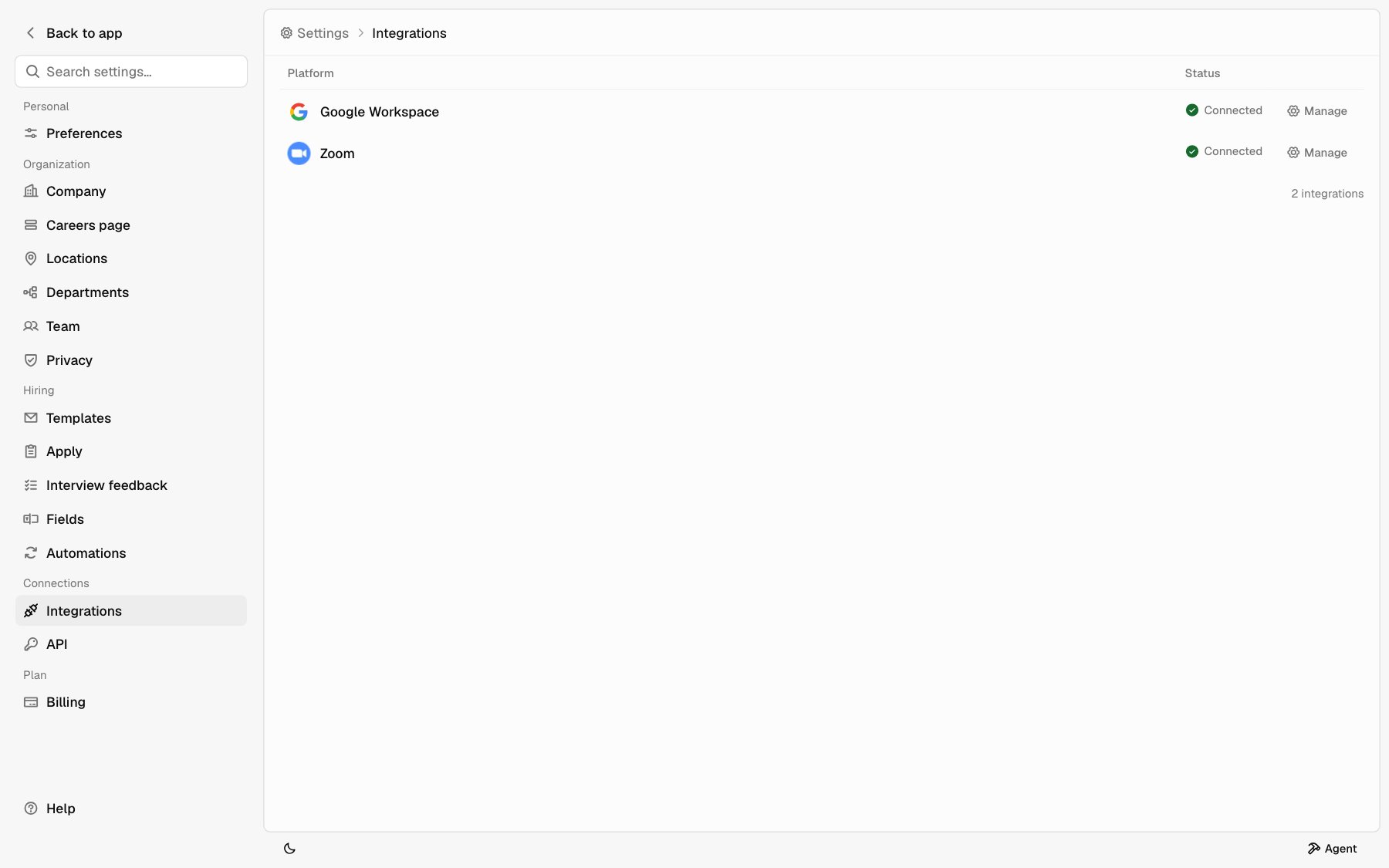
Each row shows Connected, Not connected, or Reconnect needed. Click Connect, Manage, or Reconnect to open it.
Google Workspace
One install covers everyone on your domain.- Hiring email sends from the Gmail of the teammate who clicks Send.
- Interviews go on the interviewer’s Google Calendar, with a Meet link unless you pick Zoom or phone.
- Only teammates whose Hotfix email is on this domain can send mail or own interviews.
Connect Google Workspace
You need a Google super admin for the Google Admin step. If that isn’t you, send them the Client ID and OAuth scopes from the setup panel. Each has a copy button. Whoever clicks Verify in Hotfix must be signed in to Hotfix with an email on the domain.1
Open the setup panel
On Settings > Integrations, click Connect on the Google Workspace row.
2
Open Domain-wide delegation in Google
In Google Admin, go to Security > API controls > Domain-wide delegation. The panel links straight to it.
3
Add Hotfix
Click Add new. Paste the Client ID and the OAuth scopes from Hotfix. Click Authorize.
4
Enter your domain
Back in Hotfix, enter your Domain, like
company.com. Your Hotfix sign-in must be on that domain: Hotfix checks the grant by acting as you once.5
Verify
Click Verify. When it works, you see Workspace verified and the row shows Connected.
Gmail read
Thegmail.readonly scope lets candidate replies show up in the inbox. Without it, mail still sends, but you won’t see replies in Hotfix.
When you connect without it, you see Workspace verified. Gmail read isn’t granted yet. and Gmail read shows Not granted. To turn it on:
- In Google Admin, open Security > API controls > Domain-wide delegation.
- Add
gmail.readonlyto Hotfix’s scopes. - In Hotfix, click Manage on the Google Workspace row, then Verify again.
Check the connection
Click Manage on the Google Workspace row. The panel shows the Domain, who connected it (Connected by), when it was Verified, and whether Gmail read is On. Click Verify again to recheck the grant.Disconnect Google Workspace
Click Manage, then Disconnect, and confirm. Hiring email and interview scheduling stop until you connect again. Booked interviews stay on calendars. Disconnecting in Hotfix doesn’t remove Hotfix’s access in Google. To remove that too, delete the client ID in Domain-wide delegation.Zoom
A Zoom admin connects once. When a candidate books a Zoom interview, Hotfix creates the meeting under the interviewer’s Zoom user and puts the join link on the calendar invite. Rescheduling or cancelling updates the meeting. Each interviewer needs a user on your Zoom account with the same email as their Hotfix login.Connect Zoom
1
Open the setup panel
On Settings > Integrations, click Connect on the Zoom row.
2
Authorize in Zoom
Click Connect Zoom. Sign in to Zoom as an admin and approve Hotfix.
3
Back in Hotfix
Zoom returns you to Integrations. The row shows Connected. Click Manage to see the Zoom Account and when it was Connected.