

app.hotfix.jobs. It walks you through four steps: Your company, Plan, Connect Google & Zoom, and Post a job. The last two are optional, and you can come back to them in Settings.
Setup has the screen to itself until you finish or skip it. The sidebar appears after that. If you need to leave, use Sign out at the top right.
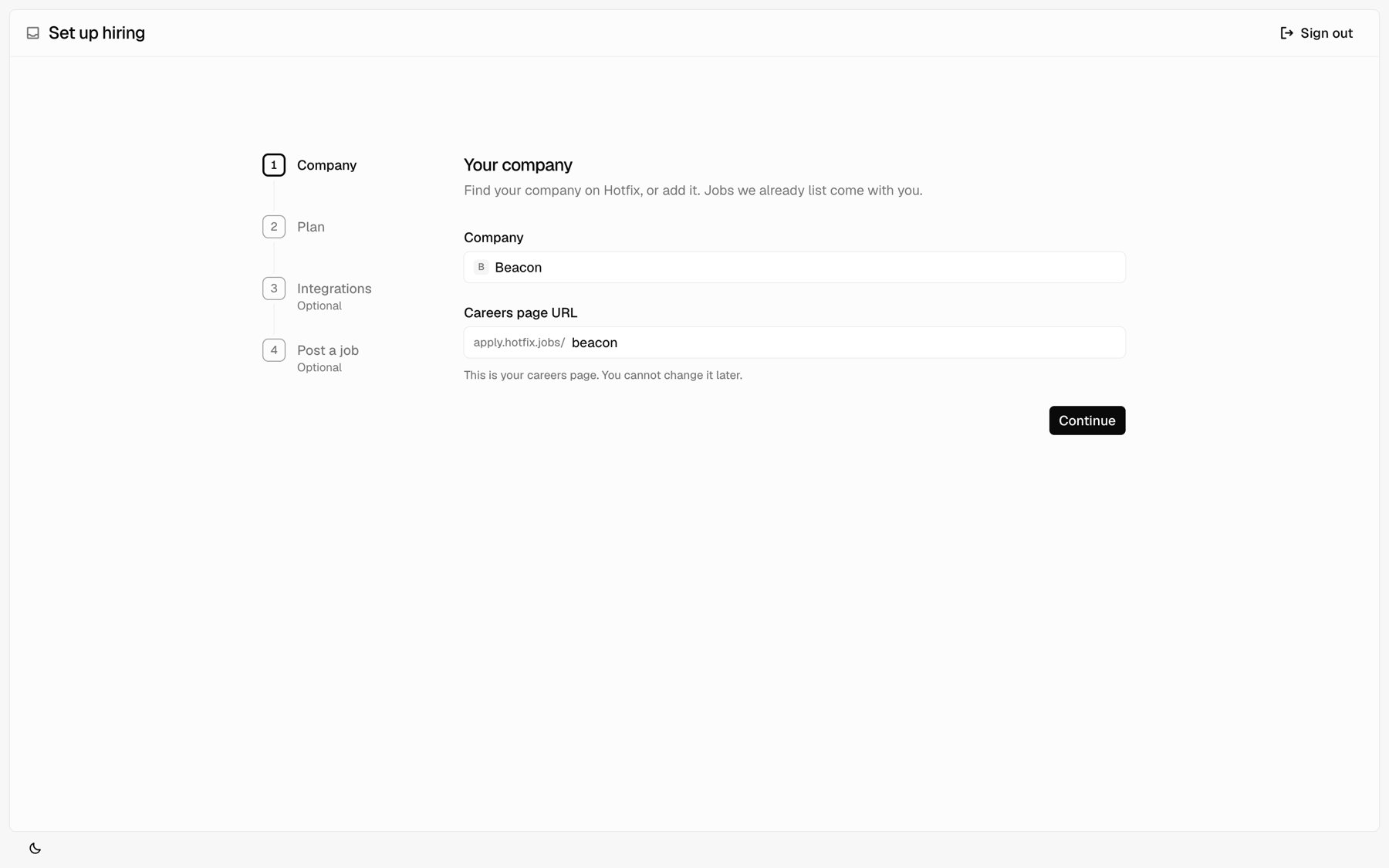
1
Your company
Under Company, start typing in Find your company. If Hotfix already knows your company, pick it. If not, pick the option to add it.For a new company, set your Careers page URL. It is the address of your careers page, after
apply.hotfix.jobs/. Use 2 to 48 lowercase letters, numbers, and hyphens. You can’t change it yourself later, so choose carefully. Contact us if you need to change it.For a company Hotfix already knows, the URL is filled in for you. Hotfix checks that you can set up hiring for it. If it can’t confirm that, it tells you why. You may see Switch account, to sign in with a different account, or Contact us.Click Continue.2
Plan
Pick Monthly or Annual, 10% off, then pick a plan. Plans differ only in how many jobs you can keep live on your careers page and how many Agent credits you get each month. See Plans below.Check the box to agree to the Customer Agreement and Data Processing Addendum on behalf of your company. Then click Pay, which shows the amount. You pay on Stripe and come back to setup when it’s done.After payment, setup waits a moment for the plan to show up, then moves on.
3
Connect Google & Zoom
Connect Google Workspace so interview invites land on calendars, and Zoom so bookings get a Zoom link. Click a row to connect it. Each row shows Connected, Not connected, or Reconnect needed.This step is optional. Click Skip to do it later under Settings > Integrations. See Integrations.
4
Post a job
Write your first job. Add a title, then fill in the details under it, like Work type, Job category, Locations, and Pay. Use Posting for the job description, Application for what applicants fill in, and Interviews for what your panel rates in feedback.Post job turns on once the title, description, work type, and job category are set. The job goes live on your careers page right away. Tech jobs also list on Hotfix search.This step is optional. Click Skip to finish setup and post a job later. See Post a job.
If Hotfix already lists your jobs
If Hotfix search already lists jobs from your company, setup adds a step after Plan called Jobs on your careers page. Check the jobs you want on your careers page, up to your plan’s limit. The count under the list shows how many you’ve picked. Jobs you leave unchecked stay in Hotfix search. Click Keep on careers page to save your picks. If all your jobs fit your plan, Skip puts all of them on your careers page.Plans
Every plan has the same features. Plans differ by how many jobs you keep live on your careers page.
A live job is one that’s on your careers page. Drafts don’t count, and closing a job frees a slot. For prices and plans above 200 jobs, see hotfix.jobs/pricing.
To change your plan later, an Owner goes to Settings > Billing and clicks Change plan. You can’t switch to a plan smaller than the number of jobs on your careers page. Close jobs first. Billing also shows how many jobs are on your careers page against your limit.