

The sidebar
The sidebar has three places to work:
The number next to Inbox is how many applications are still New, waiting for a first look. Saved views you make in the Inbox show up under Inbox in the sidebar, each with how many applications it matches.
At the top of the sidebar, your company name opens the company menu. It starts with your name and email, then:
- Settings opens your settings.
- Team opens Settings > Team. See Team.
- Sign out signs you out.
- Search opens Search. See Search below.
- Post a job opens a new job. See Post a job.
- Docs opens these docs.
- What’s new opens the Changelog.
- Feedback sends an idea, a bug, or a question to the Hotfix team without leaving the app. We reply to your email.
- Keyboard shortcuts lists the shortcuts below.
Settings
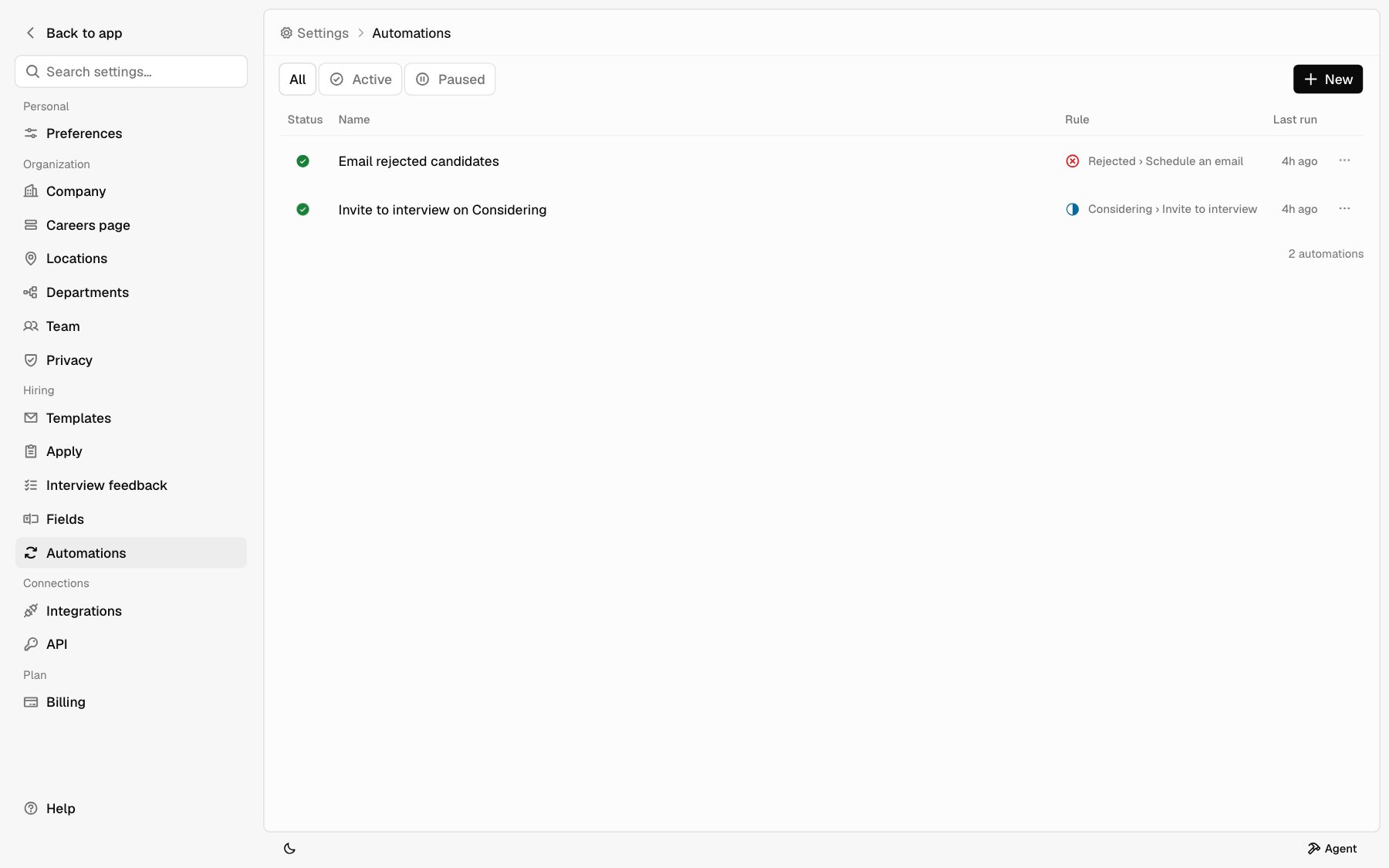
Open Settings from the company menu. The sidebar switches to a list of settings pages, grouped like this:
To find one setting, type in Search settings… at the top. To leave Settings, click Back to app. It returns you to where you were.
Related guides: Careers page, Automations, Integrations, and Team.
Keyboard shortcuts
Press ? anywhere in the app to see these. On Windows, use Ctrl where Mac uses ⌘. Shortcuts don’t run while you’re typing in a field.
Press G, let go, then press the second key within a second. You only get the pages your sidebar shows. Hover over Search or the sidebar button to see its shortcut, and pages in Search show theirs too.
Notifications
The bell at the top of the dashboard shows updates on your applications: interviews booked or moved, offers accepted or declined, feedback you owe, applications assigned to you, notes that mention you, and email that didn’t send. Click one to open the application. The footer counts new applications in your inbox. To choose which updates reach you, go to Settings > Preferences. See Preferences.What each role sees
Your role decides which settings pages you can open. Everyone can use Inbox, Jobs, Analytics, and Search.
Only Owners see Billing, so only Owners change the plan or buy Agent credits. See Team to change someone’s role.
Search
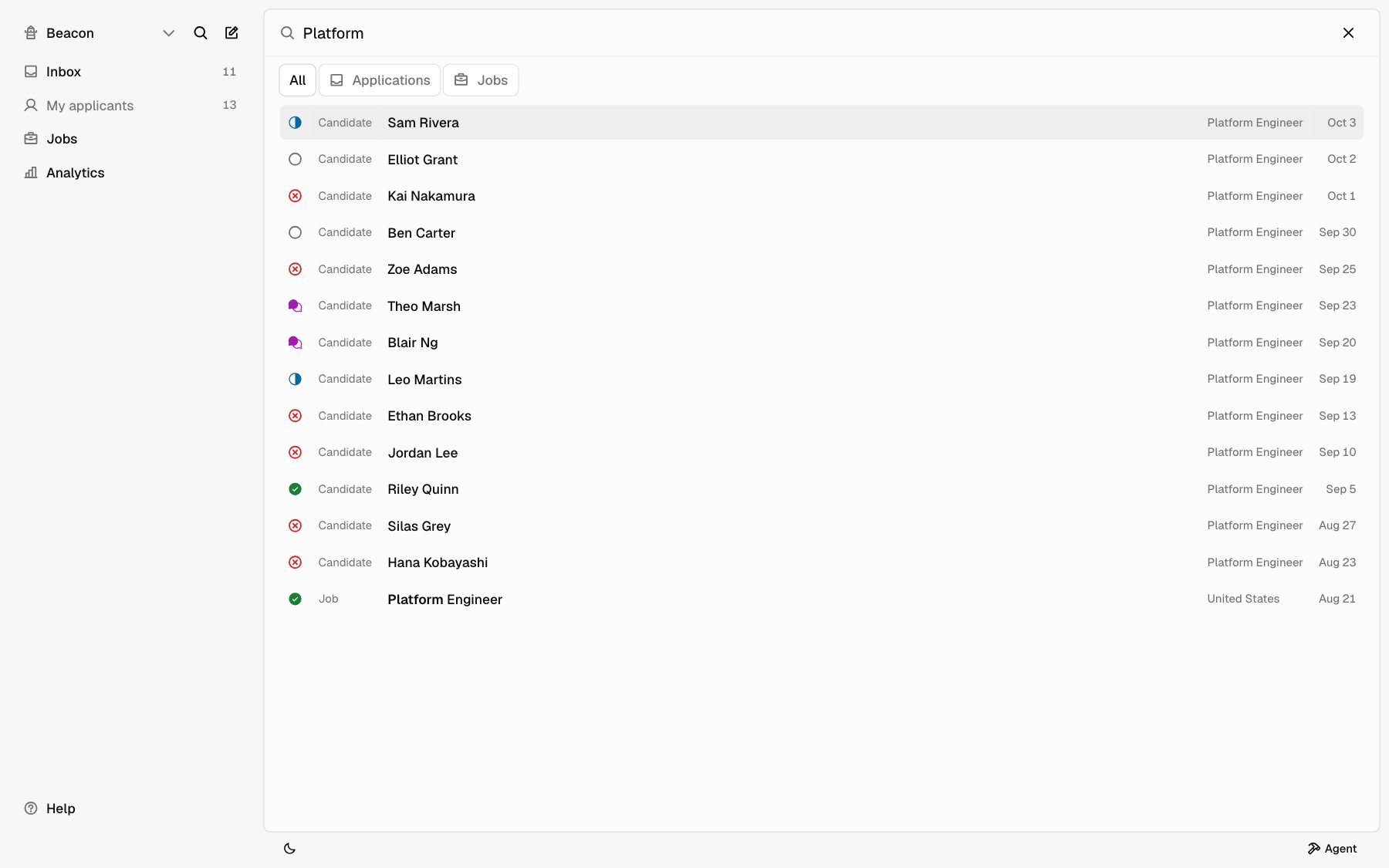
Search finds candidates, what notes and email say about them, jobs, settings, and actions, all from one box. To open it, click Search in the sidebar, or press ⌘ K on Mac or Ctrl K on Windows. The shortcut doesn’t work in Settings, or while you’re typing in a field. Press Esc, the same shortcut again, or Close to leave. Start typing. Results show what each one is:
Use All, Applications, or Jobs above the results to narrow them. Use the arrow keys to move and Enter to open.
Quick actions
With nothing typed, Search lists actions you can start. Press ⌘ K, then Enter, to run the first one.- Post a job
- Invite a teammate
- New automation
- New email template
- Connect Zoom or Google
- Manage billing
Agent
Agent is a chat assistant inside the app. Ask it about an application, a job, or an automation.1
Open Agent
Click Agent at the bottom right of the app. On a phone, it opens full
screen.
2
Ask
Type in the box and press Enter. Type
@ to point Agent at a
specific applicant, job, or teammate.3
Keep going
Use New chat to start over, and Chat history to open an earlier
chat. Expand fills the main area with the chat, and Collapse shrinks
it back.
- Rejects someone you didn’t clearly ask it to reject by name. “Reject Dana” goes ahead; “Should we reject Dana?” shows a card.
- Turns an automation on, or changes an automation that’s already on. Automations Agent creates start Paused.
Agent credits
Each Agent reply uses Agent credits from a pool your whole company shares. Your plan includes credits each month. See Plans.- Plan credits reset each month. Credits you buy don’t reset.
- Automations don’t use credits.
- When credits run out, Agent says so until they reset or you buy more.