

- Your careers page header, at
apply.hotfix.jobs. - Your company page on Hotfix. Click View public page at the top right of Settings > Company to open it in a new tab.
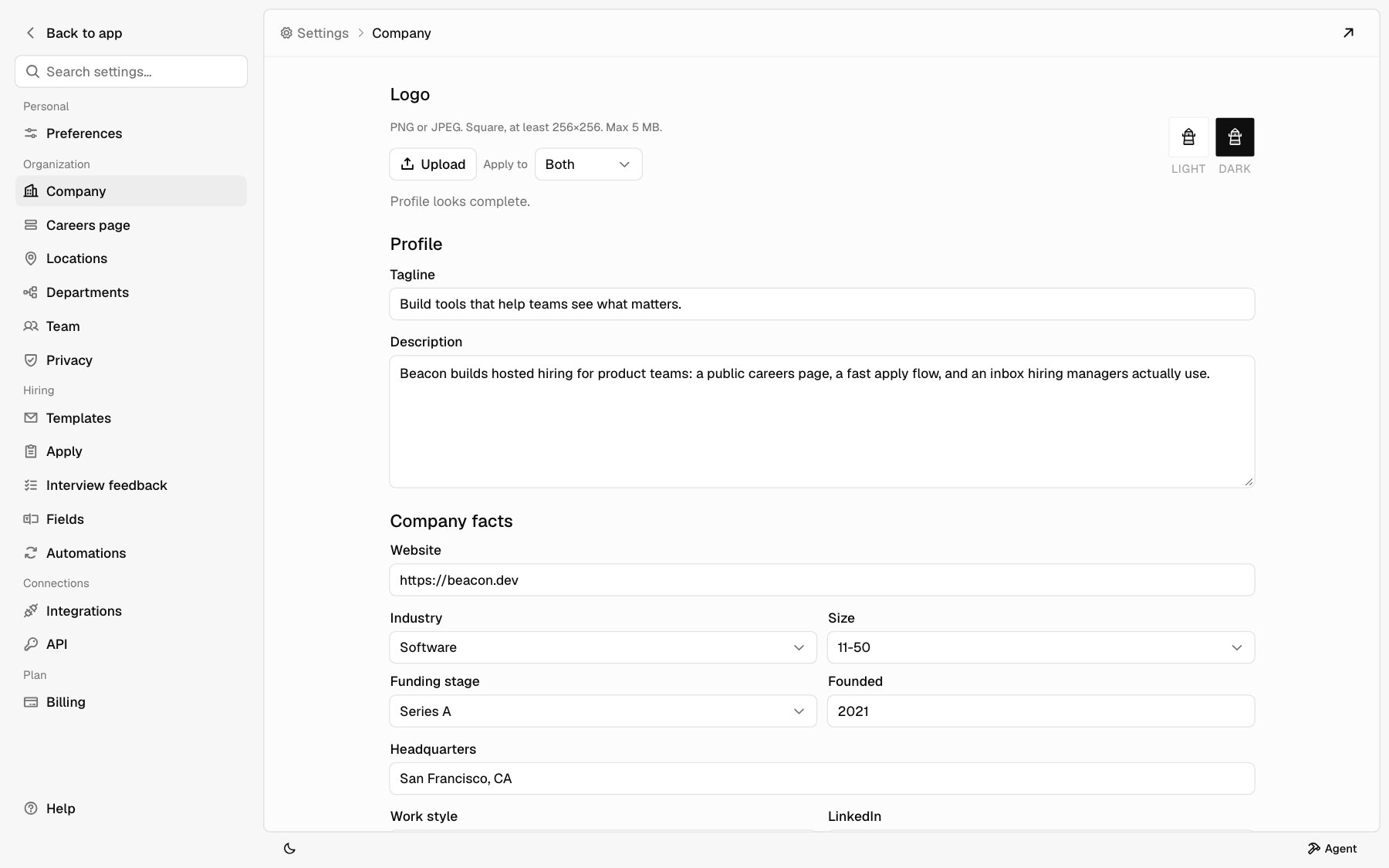
Logo
1
Pick where it applies
Next to Apply to, choose Both, Light only, or Dark only. Use
Light only and Dark only to upload a different logo for light and
dark mode.
2
Upload
Click Upload and choose a file. The logo saves right away and you see
Logo updated.
The Light and Dark previews on the right show what you uploaded. Until you upload one, a preview shows your company’s first letter.
Profile checklist
Under the logo, Hotfix lists what your profile is missing: Tagline, Description, Industry, Company size, Tech stack, or Benefits. When all are filled in, it says Profile looks complete. When you first set up your company, Hotfix may fill in your profile for you. While it works, you see Filling in your company profile with AI. Anything you edit stays.Edit your profile
1
Change the fields
Edit any field below. See Fields for each one.
2
Save
Click Save changes at the bottom. It’s off until you change something.
You see Profile updated when it saves.
Fields
In Tech stack and Benefits, blank lines and repeats are dropped when you save.
Where each field shows
When you embed your careers page on your own site, the bar with your logo, name, and website doesn’t show, since your site already has it. The tagline still shows above your jobs. See Embed on your site.
To change your careers page’s colors, font, and corners, see Match your site.