> ## Documentation Index
> Fetch the complete documentation index at: https://docs.hotfix.jobs/llms.txt
> Use this file to discover all available pages before exploring further.
> ## Agent Instructions
> Product noun is jobs.
> MCP at https://rest.hotfix.jobs/mcp is the hiring contract for agents. Clients sign in with Hotfix; API keys are for HTTP only.
> Do not invent unpublished REST or hiring stats. Webhooks are set up in the app; there is no REST route or MCP tool to manage them.
> Do not mention Greenhouse, Ashby, Quick Apply, or claim.
> Creating a draft, offer, or booking link does not send email.
# Templates
> Save the emails and offer letters your team sends often, and fill them in per candidate with tokens.
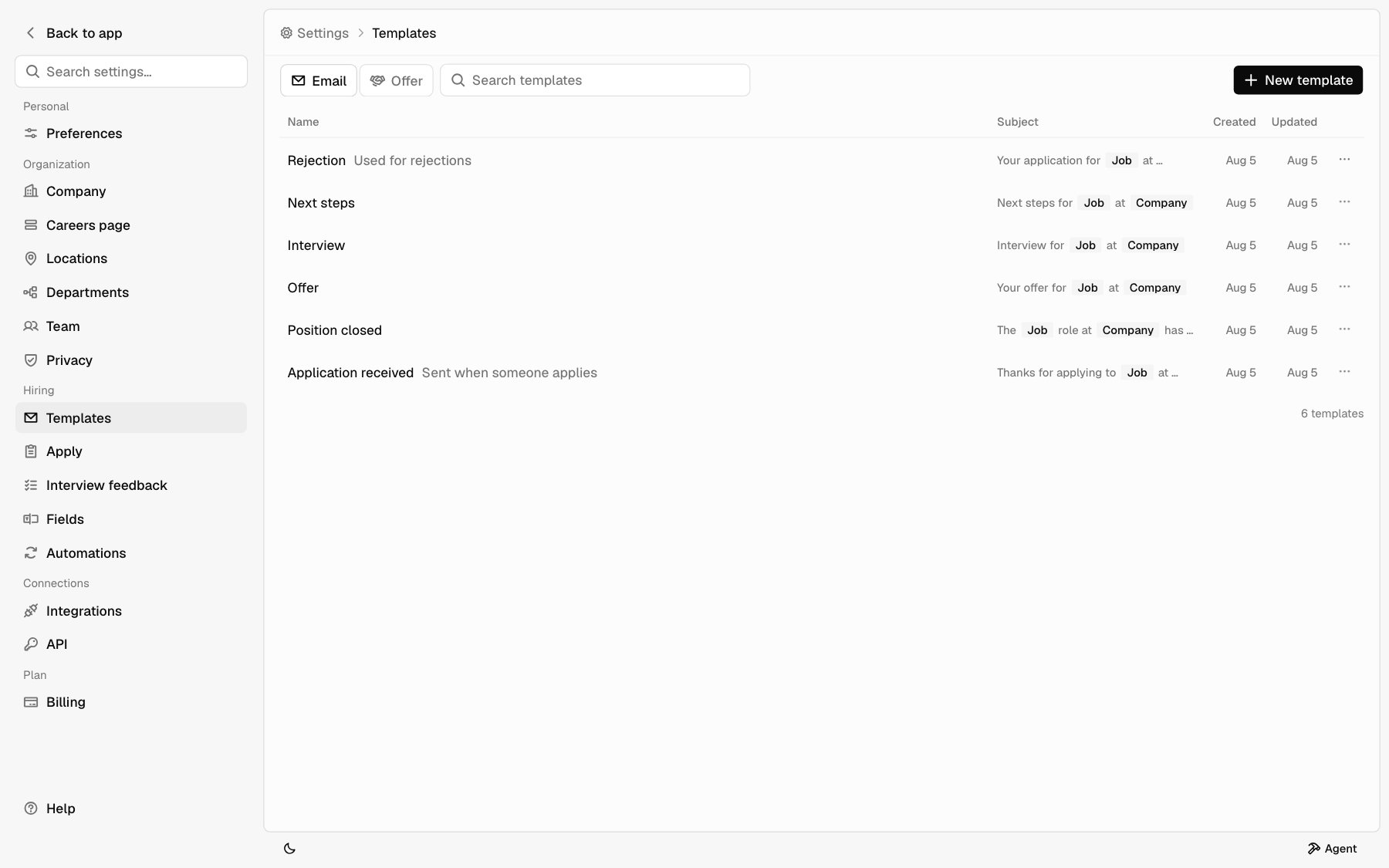
Templates live under **Settings** > **Templates**. Owners and Admins see this page. Everyone on your team can pick a template when they email a candidate, schedule an interview, or send an offer.
The page has two tabs:
* **Email** holds emails: rejections, interview invites, offer emails, and anything else you send often.
* **Offer** holds offer letters, the page a candidate reads before they accept or decline. See [Send offers](/help/offers).
## The templates list
Each tab lists its templates by **Name**, with **Created** and **Updated** dates. The **Email** tab also shows each template's **Subject**.
Type in **Search templates** to narrow the list. On the **Email** tab, search matches the name or subject. On the **Offer** tab, it matches the name or the letter.
Each tab holds up to 20 templates. When a tab is full, **New template** and **Duplicate** are grayed out. Delete one to make room.
 ## Built-in templates
Your company starts with these email templates. You can edit all of them.
| Template | Where it's used |
| - | - |
| **Rejection** | The **Reject** dialog picks it by default. Shows **Used for rejections** in the list. |
| **Next steps** | A short note asking the candidate for times to talk. Pick it when you email a candidate. |
| **Interview** | **Schedule interview** picks it by default. It includes the **Booking link** token. |
| **Offer** | **Send offer** picks it by default for the offer email. It includes the **Offer link** token. |
| **Position closed** | The close dialog picks it by default to tell people still in the pipeline that the role closed. |
| **Application received** | Hotfix sends it to everyone who applies. Shows **Sent when someone applies** in the list. |
**Rejection**, **Position closed**, and **Application received** can't be deleted, because Hotfix sends them for you. Edit them to change what candidates receive. You can delete the others. A deleted built-in template doesn't come back.
The **Offer** tab starts with one letter, also named **Offer**. **Send offer** fills the letter from it. If you delete it, **Send offer** starts from your most recently updated letter, or a short built-in letter when you have none.
### Application received
Hotfix sends **Application received** to every applicant once their application reaches your inbox. It goes out from Hotfix on your company's behalf, not from anyone's Google account, so it has no signature. Replies go to the **Reply-to email** under **Settings** > **Apply**. See [Apply settings](/help/apply-settings).
It can use **First name**, **Job**, **Company**, and **Careers page link**. Any other token comes out blank.
## Create an email template
Go to **Settings** > **Templates** and stay on **Email**.
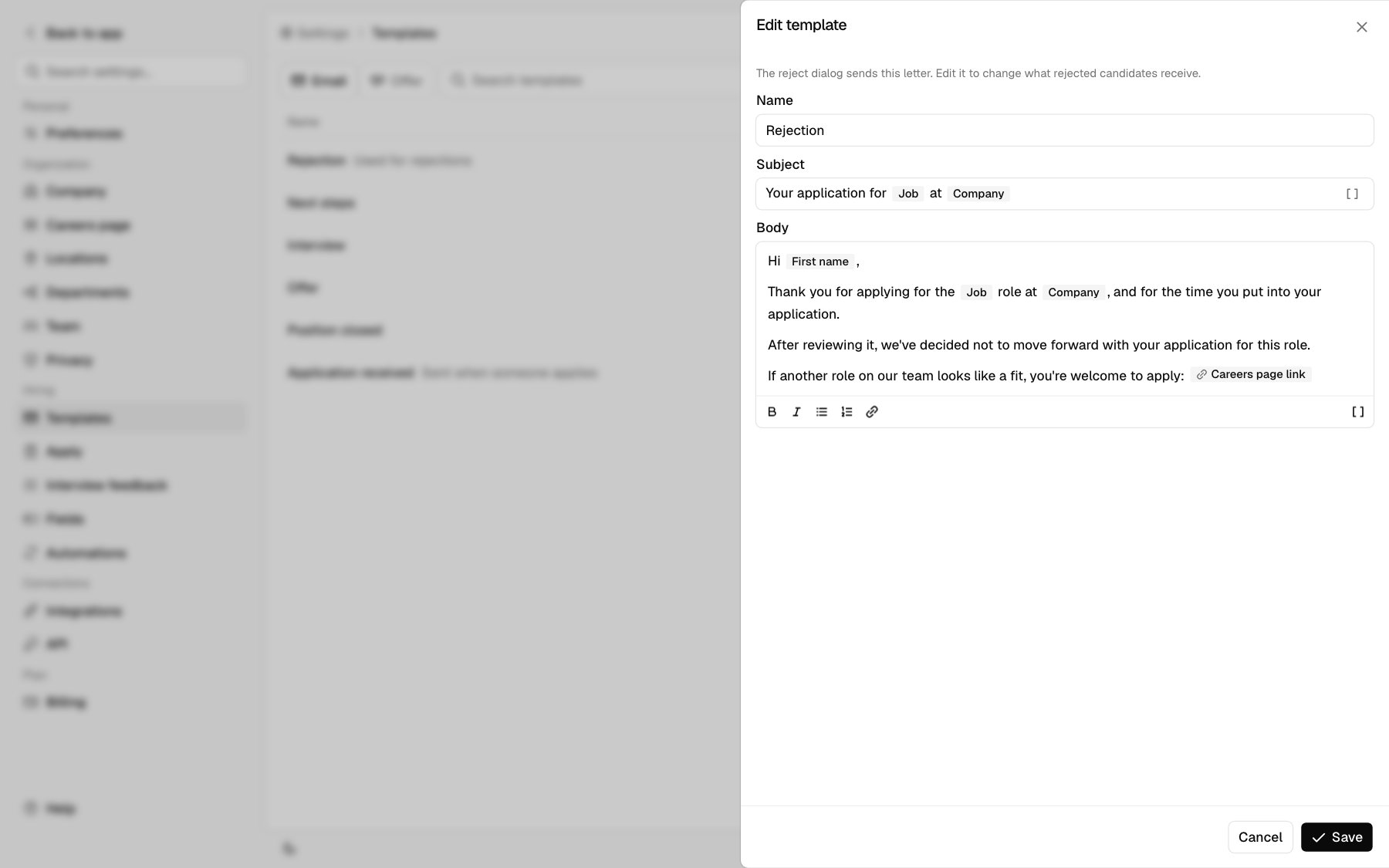
The **New template** panel opens on the right.
Type a **Name**. Your team sees it in every template picker. A name is
required.
Fill in **Subject** and **Body**. The subject is one line. The body supports
bold, italic, lists, numbered lists, and links.
Click **Insert token** in the toolbar and pick one. It shows as a pill and
fills in for each candidate. See [Email tokens](#email-tokens).
Click **Save**.
Don't put a signature in a template. Each teammate sets their own under **Settings** > **Preferences** > **Signature**, and Hotfix adds it below every email they send from their Google account.
## Built-in templates
Your company starts with these email templates. You can edit all of them.
| Template | Where it's used |
| - | - |
| **Rejection** | The **Reject** dialog picks it by default. Shows **Used for rejections** in the list. |
| **Next steps** | A short note asking the candidate for times to talk. Pick it when you email a candidate. |
| **Interview** | **Schedule interview** picks it by default. It includes the **Booking link** token. |
| **Offer** | **Send offer** picks it by default for the offer email. It includes the **Offer link** token. |
| **Position closed** | The close dialog picks it by default to tell people still in the pipeline that the role closed. |
| **Application received** | Hotfix sends it to everyone who applies. Shows **Sent when someone applies** in the list. |
**Rejection**, **Position closed**, and **Application received** can't be deleted, because Hotfix sends them for you. Edit them to change what candidates receive. You can delete the others. A deleted built-in template doesn't come back.
The **Offer** tab starts with one letter, also named **Offer**. **Send offer** fills the letter from it. If you delete it, **Send offer** starts from your most recently updated letter, or a short built-in letter when you have none.
### Application received
Hotfix sends **Application received** to every applicant once their application reaches your inbox. It goes out from Hotfix on your company's behalf, not from anyone's Google account, so it has no signature. Replies go to the **Reply-to email** under **Settings** > **Apply**. See [Apply settings](/help/apply-settings).
It can use **First name**, **Job**, **Company**, and **Careers page link**. Any other token comes out blank.
## Create an email template
Go to **Settings** > **Templates** and stay on **Email**.
The **New template** panel opens on the right.
Type a **Name**. Your team sees it in every template picker. A name is
required.
Fill in **Subject** and **Body**. The subject is one line. The body supports
bold, italic, lists, numbered lists, and links.
Click **Insert token** in the toolbar and pick one. It shows as a pill and
fills in for each candidate. See [Email tokens](#email-tokens).
Click **Save**.
Don't put a signature in a template. Each teammate sets their own under **Settings** > **Preferences** > **Signature**, and Hotfix adds it below every email they send from their Google account.
 ## Create an offer letter template
Go to **Settings** > **Templates** and click **Offer**.
A new letter starts with the name **Offer** and a short default letter you
can edit.
Change the **Name**, then write the **Letter**. Click **Insert token** to add
details that change per candidate, like **Pay** and **Start date**.
Click **Save**.
Offer letter tokens are listed in [Send offers](/help/offers#set-up-a-letter-template).
## Email tokens
Tokens fill in when the email is written for a specific candidate.
| Token | Fills in with |
| - | - |
| **First name** | The candidate's first name |
| **Job** | The job they applied to |
| **Company** | Your company name |
| **Careers page link** | A link to your careers page, or to [Your jobs page](/careers-page#your-jobs-page) if you've set one |
| **Booking link** | The candidate's open interview booking link |
| **Offer link** | The link to the candidate's open offer |
### Where link tokens are required
* **Schedule interview** only lists templates that include **Booking link**. The email must include it before you can send. See [Schedule interviews](/help/interviews).
* **Send offer** only lists templates that include **Offer link**. The email must include it before you can send. See [Send offers](/help/offers).
* In a regular email, **Booking link** and **Offer link** only fill in when the candidate has an open booking link or offer. If they don't, Hotfix won't send the email. Remove the token, or create the interview link or offer first.
### Your own fields as tokens
You can add your company's custom fields to email templates and offer letters.
1. Go to **Settings** > **Fields** and open or create a field.
2. Under **Used in**, check **Email templates**, **Offer letters**, or both.
3. Save the field.
The field shows under **Fields** in the **Insert token** menu. It fills in with that candidate's value, or blank if they have none. See [Fields](/help/fields).
## Edit, duplicate, or delete a template
Click a template to open it. Make your changes and click **Save**.
Or click **⋯** on its row:
* **Edit** opens the template.
* **Duplicate** makes a copy named **Copy of** and the original name, and opens it.
* **Delete** removes the template right away. There's no confirmation, so check you picked the right one.
You can also click **Delete** at the bottom of an open template. **Rejection**, **Position closed**, and **Application received** have no **Delete**.
## Where templates are used
| Where | What you pick |
| - | - |
| Emailing a candidate from their record | **Template**, from every email template. Picking one replaces what you typed. See [Candidate record](/help/candidate-record#email-an-applicant). |
| The **Reject** dialog | The rejection email. **Rejection** is picked by default. See [Reject an applicant](/help/candidate-record#reject-an-applicant). |
| Closing a job | The email for people still in the pipeline. **Position closed** is picked by default. See [Close a job](/help/post-a-job#tell-the-people-still-in-the-pipeline). |
| **Schedule interview** | **Email template**, from templates with **Booking link**. **Interview** is picked by default. |
| **Send offer** | **Letter template** from the **Offer** tab, and **Email template** from templates with **Offer link**. |
| [Automations](/help/automations) | **Draft an email**, **Schedule an email**, and **Invite to interview** each use an email template. **Invite to interview** only lists templates with **Booking link**. |
| Every new application | **Application received**, sent by Hotfix. |
## Related
* [Send offers](/help/offers)
* [Schedule interviews](/help/interviews)
* [Candidate record](/help/candidate-record)
* [Fields](/help/fields)
* [Automations](/help/automations)
* [Apply settings](/help/apply-settings)
This documentation is built and hosted on [Mintlify](https://mintlify.com), a developer documentation platform.
## Create an offer letter template
Go to **Settings** > **Templates** and click **Offer**.
A new letter starts with the name **Offer** and a short default letter you
can edit.
Change the **Name**, then write the **Letter**. Click **Insert token** to add
details that change per candidate, like **Pay** and **Start date**.
Click **Save**.
Offer letter tokens are listed in [Send offers](/help/offers#set-up-a-letter-template).
## Email tokens
Tokens fill in when the email is written for a specific candidate.
| Token | Fills in with |
| - | - |
| **First name** | The candidate's first name |
| **Job** | The job they applied to |
| **Company** | Your company name |
| **Careers page link** | A link to your careers page, or to [Your jobs page](/careers-page#your-jobs-page) if you've set one |
| **Booking link** | The candidate's open interview booking link |
| **Offer link** | The link to the candidate's open offer |
### Where link tokens are required
* **Schedule interview** only lists templates that include **Booking link**. The email must include it before you can send. See [Schedule interviews](/help/interviews).
* **Send offer** only lists templates that include **Offer link**. The email must include it before you can send. See [Send offers](/help/offers).
* In a regular email, **Booking link** and **Offer link** only fill in when the candidate has an open booking link or offer. If they don't, Hotfix won't send the email. Remove the token, or create the interview link or offer first.
### Your own fields as tokens
You can add your company's custom fields to email templates and offer letters.
1. Go to **Settings** > **Fields** and open or create a field.
2. Under **Used in**, check **Email templates**, **Offer letters**, or both.
3. Save the field.
The field shows under **Fields** in the **Insert token** menu. It fills in with that candidate's value, or blank if they have none. See [Fields](/help/fields).
## Edit, duplicate, or delete a template
Click a template to open it. Make your changes and click **Save**.
Or click **⋯** on its row:
* **Edit** opens the template.
* **Duplicate** makes a copy named **Copy of** and the original name, and opens it.
* **Delete** removes the template right away. There's no confirmation, so check you picked the right one.
You can also click **Delete** at the bottom of an open template. **Rejection**, **Position closed**, and **Application received** have no **Delete**.
## Where templates are used
| Where | What you pick |
| - | - |
| Emailing a candidate from their record | **Template**, from every email template. Picking one replaces what you typed. See [Candidate record](/help/candidate-record#email-an-applicant). |
| The **Reject** dialog | The rejection email. **Rejection** is picked by default. See [Reject an applicant](/help/candidate-record#reject-an-applicant). |
| Closing a job | The email for people still in the pipeline. **Position closed** is picked by default. See [Close a job](/help/post-a-job#tell-the-people-still-in-the-pipeline). |
| **Schedule interview** | **Email template**, from templates with **Booking link**. **Interview** is picked by default. |
| **Send offer** | **Letter template** from the **Offer** tab, and **Email template** from templates with **Offer link**. |
| [Automations](/help/automations) | **Draft an email**, **Schedule an email**, and **Invite to interview** each use an email template. **Invite to interview** only lists templates with **Booking link**. |
| Every new application | **Application received**, sent by Hotfix. |
## Related
* [Send offers](/help/offers)
* [Schedule interviews](/help/interviews)
* [Candidate record](/help/candidate-record)
* [Fields](/help/fields)
* [Automations](/help/automations)
* [Apply settings](/help/apply-settings)
This documentation is built and hosted on [Mintlify](https://mintlify.com), a developer documentation platform.