> ## Documentation Index
> Fetch the complete documentation index at: https://docs.hotfix.jobs/llms.txt
> Use this file to discover all available pages before exploring further.
> ## Agent Instructions
> Product noun is jobs.
> MCP at https://rest.hotfix.jobs/mcp is the hiring contract for agents. Clients sign in with Hotfix; API keys are for HTTP only.
> Do not invent unpublished REST or hiring stats. Webhooks are set up in the app; there is no REST route or MCP tool to manage them.
> Do not mention Greenhouse, Ashby, Quick Apply, or claim.
> Creating a draft, offer, or booking link does not send email.
# Post a job
> Write a job, set up its application form, post it to your careers page, and manage it from the Jobs page.
Everyone on your team can post, edit, and close jobs. Open **Jobs** in the sidebar to start.
## The Jobs page
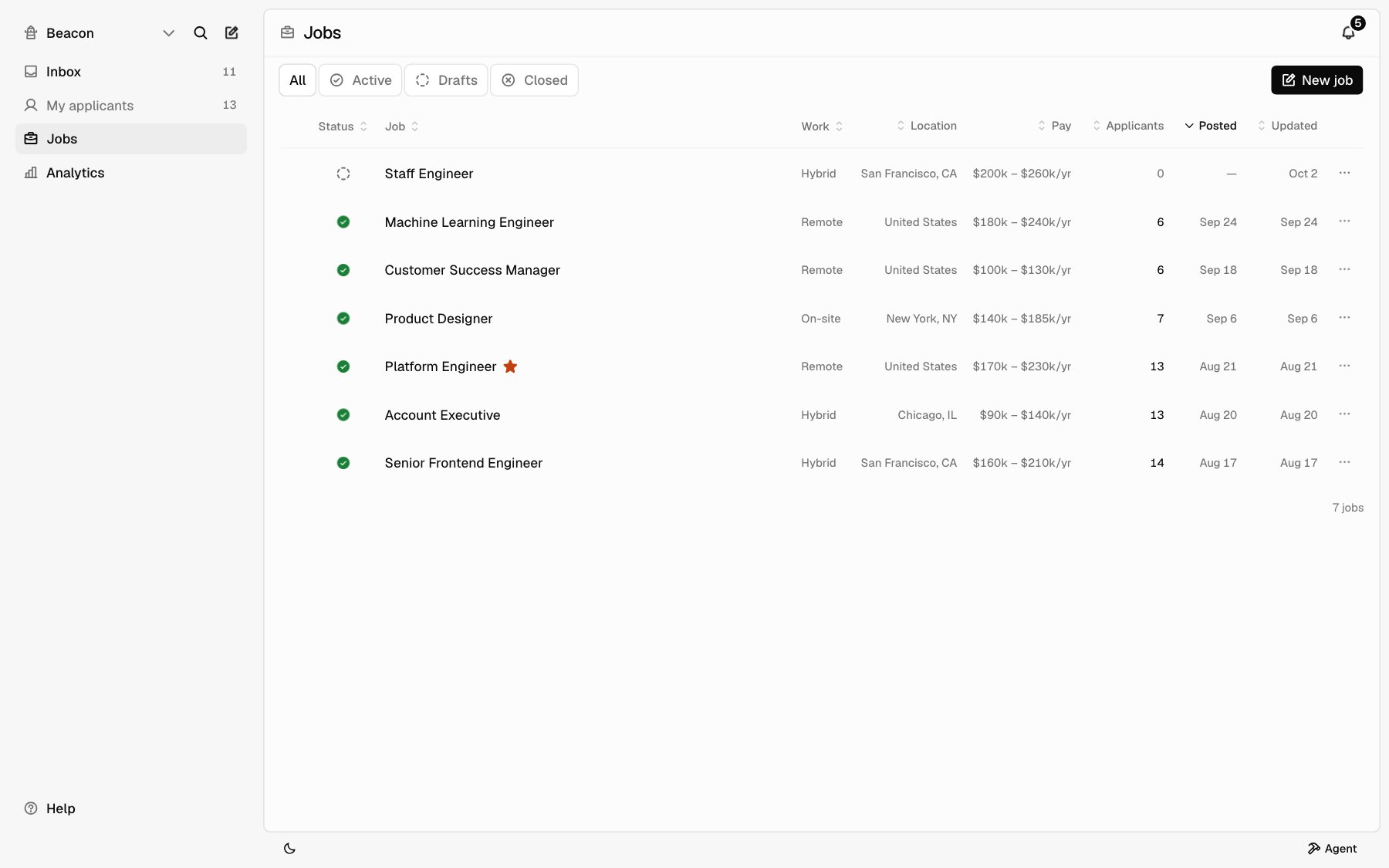
The Jobs page lists every job, including drafts and closed jobs. Use the tabs at the top to filter.
| Tab | Shows |
| - | - |
| **All** | Every job |
| **Active** | Posted jobs that are open |
| **Drafts** | Jobs you saved but haven't posted |
| **Closed** | Jobs you closed |
Each row shows **Status**, **Job**, **Work**, **Location**, **Pay**, **Applicants**, **Posted**, and **Updated**. Click a column header to sort. Click a row to open the job. Click the applicant count to open those applicants in the [inbox](/help/inbox).
 You need a hosted plan to put jobs on your careers page. Without one, the Jobs
page links you to **Billing**.
## Write a job
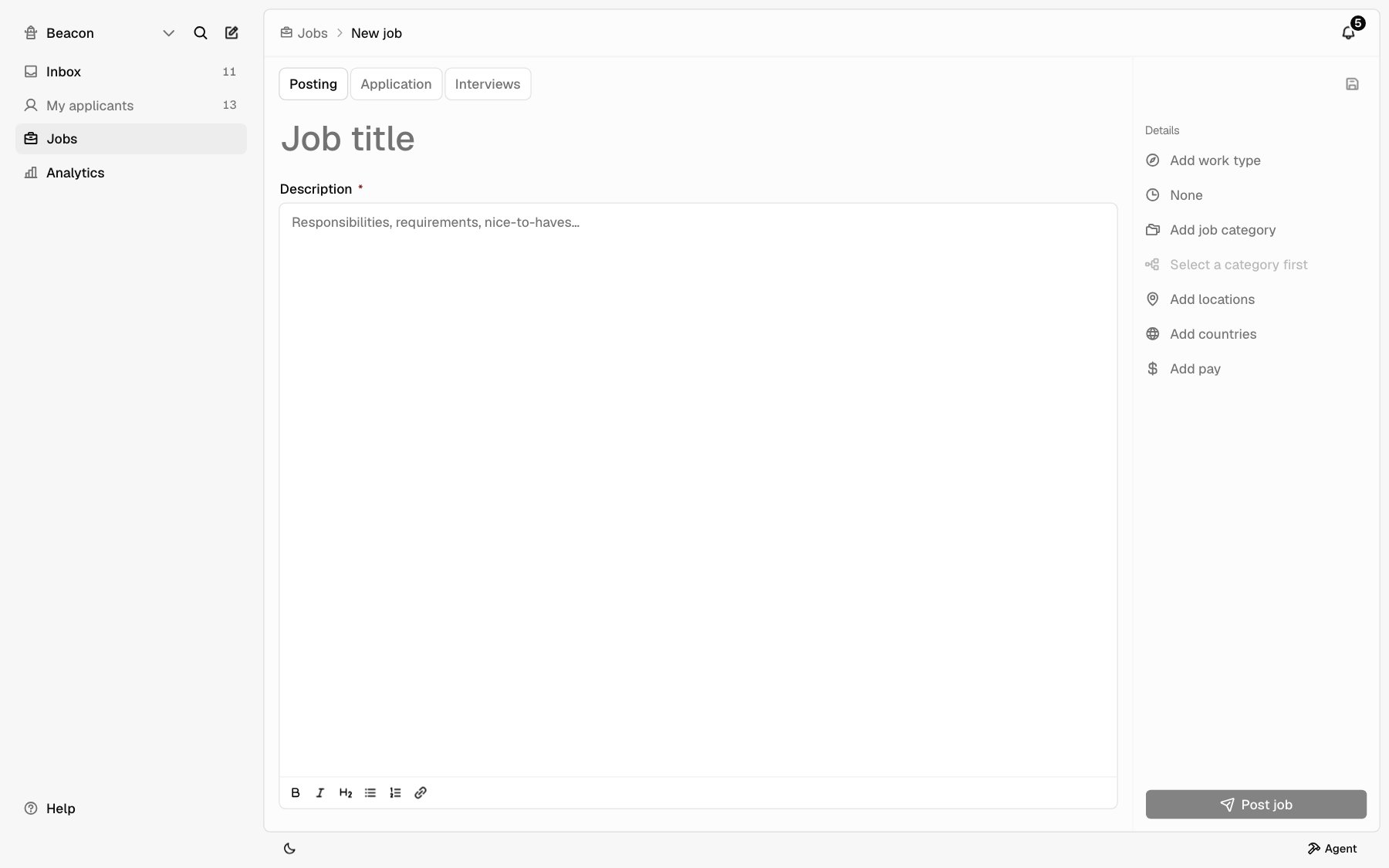
On the Jobs page, click **Post a job**. The job editor opens with three
tabs: **Posting**, **Application**, and **Interviews**. Job details sit in
the panel on the right.
On **Posting**, type the job title at the top. Write the **Description**
below it. Both are required.
Set the job details in the right panel. See [Job details](#job-details).
Open the **Application** tab to choose what candidates fill in. See [The
application form](#the-application-form).
Open the **Interviews** tab to choose what the panel rates after each
interview. See [Interview criteria](#interview-criteria).
Click **Post job** to publish, or **Save as draft** to finish later. See
[Post or save as draft](#post-or-save-as-draft).
You need a hosted plan to put jobs on your careers page. Without one, the Jobs
page links you to **Billing**.
## Write a job
On the Jobs page, click **Post a job**. The job editor opens with three
tabs: **Posting**, **Application**, and **Interviews**. Job details sit in
the panel on the right.
On **Posting**, type the job title at the top. Write the **Description**
below it. Both are required.
Set the job details in the right panel. See [Job details](#job-details).
Open the **Application** tab to choose what candidates fill in. See [The
application form](#the-application-form).
Open the **Interviews** tab to choose what the panel rates after each
interview. See [Interview criteria](#interview-criteria).
Click **Post job** to publish, or **Save as draft** to finish later. See
[Post or save as draft](#post-or-save-as-draft).
 ## Job details
Click a line under **Details** in the right panel to set it. An empty line reads **Add**, like **Add work type**. Hover any line to see what it is.
| Detail | What to set |
| - | - |
| Work type | **Remote**, **Hybrid**, or **On-site**. Required. |
| Employment | **Full-time**, **Part-time**, **Contract**, or **Intern**. Optional. |
| Job category | How your careers page and Hotfix job search group this job: Engineering, Data & AI, Product & Design, Sales, Marketing, Customer & Support, People & Recruiting, Operations, Finance & Legal, or Leadership. Required. |
| Department | The team this job belongs to on your careers page. Pick a job category first. |
| Locations | Up to 20 places, like New York, NY. Check them from your saved list. |
| Countries | The countries where you can hire. |
| Pay | **Salary min**, **Salary max**, and **Currency**. Optional. |
### Department
Pick a department from your company's list for the job's category. You manage the list under **Settings** > **Departments**. **New department…** adds one to this job, and saving the job adds it to your list. Changing the category clears the department. Departments group jobs on your careers page. They don't show in Hotfix search.
### Locations and countries
Check places from your saved list. You manage the list under **Settings** > **Locations**. **New location…** adds a place to this job, and saving the job adds it to your list. Hotfix tidies each place into one format, so "nyc" is saved as New York, NY. It won't add a place it doesn't recognize; type it as City, State or City, Country. For remote work, set **Work type** instead, and put countries under **Countries**.
Pick countries from Hotfix's country list. Search it to find one; the job's countries stay at the top.
For a remote job with no locations and no countries, the job shows as **Worldwide**. If a remote job isn't open worldwide, add the countries you can hire in.
### Pay
Enter numbers like `120000`, or shorthand like `120k`. The minimum can't be more than the maximum. **Currency** is USD, EUR, GBP, CAD, or AUD. It starts as USD.
## The application form
The **Application** tab has three sections.
### Candidate details
Name and email are always asked. For each of **Resume**, **Phone**, **LinkedIn**, **GitHub**, **Website**, and **Cover letter**, choose **Required**, **Optional**, or **Off**. A new job asks for a resume and turns the rest off.
### Screening
Screening questions are knockouts. Turn on a switch to ask it. A disqualifying answer rejects the application and archives it. The candidate can still submit and isn't told. See [Knockouts](/applications#knockouts).
| Question | Rejects |
| - | - |
| **Work authorization** | "No" |
| **No sponsorship** | "No". Shows when **Work authorization** is on. |
| **As posted** | "No" to working the location and schedule on the job |
| **Years of experience** | Fewer than the **Minimum years** you set |
### Questions
Add up to 20 questions. Click **Add question**, then:
* **From your fields** adds one of your company fields. The answer fills that field on the application, so you can filter on it. You manage fields under **Settings** > **Fields**.
* **One-off question** asks a question on this job only.
For a one-off question, type the **Question** and pick a **Type**: **Short text**, **Long text**, **Yes / no**, **Select**, **Number**, **Date**, or **File**. A **Select** needs at least two options. Check **Required** to make it required.
A **Yes / no** question can be a knockout. Under **Knock out**, choose **If yes** or **If no** to reject that answer, or leave it **Off**.
Use the **...** menu on a question to **Edit**, **Move up**, **Move down**, or **Remove** it.
### Equal opportunity survey
The last line shows whether the equal opportunity survey is **On** or **Off**. It applies to every job. Owners and Admins change it under **Settings** > **Apply**.
## Interview criteria
The **Interviews** tab sets what everyone interviewing for this job rates on their feedback form, above the overall verdict. See [Interview feedback](/help/feedback#rate-the-criteria). If your company has [turned feedback off](/help/feedback#turn-feedback-off), the tab is hidden.
* Click **Add criterion**, type a **Name**, like System design, and **What good looks like**, like Scale, failure, tradeoffs, then click **Add criterion** in the panel. The second part shows under the name on the form. Two criteria can't share a name. A job can have up to 6.
* Click a criterion, or **Edit** in its **...** menu, to change it. The same menu has **Move up**, **Move down**, and **Remove**.
* Click **Copy from another job** and pick a job to use that job's criteria instead. If this job already has criteria, Hotfix asks before replacing them.
* Click **Preview feedback form** to see the form interviewers fill in, with these criteria, **Overall**, and **Notes**. Nothing you pick there is saved.
The last line, **Overall verdict**, is always asked. With no criteria, the form asks for the overall verdict only. Criteria save with the job when you click **Save** or **Post job**, and **Duplicate** copies them.
Editing criteria changes future feedback forms only. Feedback already submitted keeps the criteria it was rated on.
## Hiring team
**Hiring team**, on the right side of a posted job, lists the teammates hiring for it. It starts empty, which means the whole company. While it's empty, only owners and admins see it.
* Owners and admins click **Add teammate** and pick a teammate.
* Each person's role shows beside their name. Click a person to give them a role, **Hiring manager**, **Recruiter**, or **Interviewer**, or to **Remove from team**.
* Changes save right away, not with **Save**.
Once a job has a team:
* Notifications about an applicant nobody is assigned to go to the team instead of everyone. An assignee still gets their own applicants. See [Preferences](/help/preferences#notify-me-about).
* Scheduling an interview starts **Also in the meeting** with the team's Interviewers. See [Add more people](/help/interviews#add-more-people).
* Only the team, the people on each interview, and owners and admins can read the job's interview feedback. See [Who can read feedback](/help/feedback#who-can-read-feedback).
* **My jobs** in the Inbox lists applicants to jobs you're on the team for. See [Inbox](/help/inbox).
Someone who leaves your company drops off every team.
## Post or save as draft
**Save as draft** is the disk icon at the top of the right panel. A draft needs only a title. It isn't on your careers page and doesn't count toward your plan.
**Post job** is at the bottom of the right panel. It needs a title, description, work type, job category, valid pay, and complete questions. Posting puts the job on your careers page right away.
To post a draft, open it from the **Drafts** tab and click **Post job**.
## Your careers page and Hotfix search
A posted job is on your [careers page](/careers-page) right away. Tech jobs are also listed on Hotfix search, on their own.
After you post, Hotfix reads the job in the background to fill in its search details, including the short summary shown on Hotfix search, and check that it's a tech job. Tech jobs are then listed on Hotfix search on their own. You don't need to do anything.
The right panel shows **Listed on Hotfix search** or **Not on Hotfix search**. A job that isn't listed is only on your careers page.
When you edit the title, description, locations, countries, job category, work type, employment, or pay, Hotfix reads the job again. It stays on Hotfix search meanwhile, and comes off only if it's no longer a tech role. Department edits don't do this. See [Jobs](/jobs) for how this works in the API.
## Edit a job
Open the job, make your changes, and click **Save**. If you try to leave with unsaved changes, Hotfix asks you to **Stay** or **Leave**.
## Job actions
Open a job and use the icons at the top of the right panel. Or click **...** on a row on the Jobs page. **Copy tracking link** and **Copy embed code** are only in the job's right panel.
If you've set **Your jobs page** under **Settings** > **Careers page**, **View listing** and tracking links open the job there instead of on `apply.hotfix.jobs`. See [Your jobs page](/careers-page#your-jobs-page).
| Action | What it does |
| - | - |
| **Duplicate** | Opens a new job filled in with this job's details. |
| **View listing** | Opens the job's page on your careers page in a new tab. Not available for drafts. |
| **Copy tracking link** | Copies the job's link tagged with where you'll share it, like LinkedIn or Referral. Pick **Other…** to name your own, or **Plain link** for no tag. Applications from a tagged link count under that name in Analytics. |
| **Copy embed code** | Copies a snippet that puts this one job on a page of your own site: **Job and apply form**, or **Apply form only** for a page that already describes the job. See [Embed one job](/careers-page#embed-one-job). |
| **Promote** | Pins the job above matching results in Hotfix job search for 30 days. See [Promote a job](#promote-a-job). |
| **Close** | Closes the job for good. See [Close a job](#close-a-job). |
## Close a job
Closing is permanent. A closed job leaves your careers page and Hotfix search, and you can't reopen it. Applications stay on the job. To hire for it again, use **Duplicate** to post a new job.
To close one job, do any of these:
* Open the job and click **Close** in the right panel.
* On the Jobs page, click **...** on the row and pick **Close**.
* Click the status icon on the row and pick **Closed**.
To close several, check their rows on the Jobs page and click **Close** in the bar at the bottom.
### Tell the people still in the pipeline
The close dialog shows how many people are still **New**, **Considering**, or **Interviewing**, so nobody waits on a role that's gone.
* **New** and **Considering** start checked. **Interviewing** starts unchecked, since someone your team has met deserves a personal note. Check or uncheck any of them.
* Pick the email, **Position closed** by default, and when it sends: in an hour, the next business day, or in 3 business days. It goes from your Google Workspace, as a rejection does.
* Click **Close and email** to move the checked people to **Rejected** and schedule the email. Moving someone out of **Rejected** before it sends cancels it. Click **Close only** to close without emailing anyone.
If Google Workspace isn't connected, the dialog asks you to connect it and closes without emailing. If a [Job closed automation](/help/automations#triggers) is on for the job, the dialog says it will tell them instead, and doesn't email anyone itself.
Closing also cancels scheduling links nobody has booked yet. Interviews already booked stay on the calendar, and the dialog tells you how many, so you can cancel them from each record.
## Promote a job
Promote pins an active job above matching results in Hotfix job search for 30 days. The job must show **Listed on Hotfix search**. Drafts and closed jobs can't be promoted.
Open the job and click **Promote** in the right panel, or click **...** on
its row and pick **Promote**.
The dialog shows the price. Click **Checkout** and pay.
You return to the Jobs page and see **Promotion active.** A star next to the
job title shows **Featured until** and the end date.
## Plan job limits
Each plan includes a number of live jobs. A live job is a posted job on your careers page. Drafts and closed jobs don't count.
| Plan | Live jobs |
| - | - |
| Starter | 10 |
| Growth | 100 |
| Business | 200 |
If you're at your limit, posting shows an error. Close a job or change your plan to post another. The Owner sees a **Change plan** button in the error that opens **Billing**.
## Related
* [Careers page](/careers-page)
* [Team](/help/team)
* [Inbox](/help/inbox)
* [Jobs in the API](/jobs)
This documentation is built and hosted on [Mintlify](https://mintlify.com), a developer documentation platform.
## Job details
Click a line under **Details** in the right panel to set it. An empty line reads **Add**, like **Add work type**. Hover any line to see what it is.
| Detail | What to set |
| - | - |
| Work type | **Remote**, **Hybrid**, or **On-site**. Required. |
| Employment | **Full-time**, **Part-time**, **Contract**, or **Intern**. Optional. |
| Job category | How your careers page and Hotfix job search group this job: Engineering, Data & AI, Product & Design, Sales, Marketing, Customer & Support, People & Recruiting, Operations, Finance & Legal, or Leadership. Required. |
| Department | The team this job belongs to on your careers page. Pick a job category first. |
| Locations | Up to 20 places, like New York, NY. Check them from your saved list. |
| Countries | The countries where you can hire. |
| Pay | **Salary min**, **Salary max**, and **Currency**. Optional. |
### Department
Pick a department from your company's list for the job's category. You manage the list under **Settings** > **Departments**. **New department…** adds one to this job, and saving the job adds it to your list. Changing the category clears the department. Departments group jobs on your careers page. They don't show in Hotfix search.
### Locations and countries
Check places from your saved list. You manage the list under **Settings** > **Locations**. **New location…** adds a place to this job, and saving the job adds it to your list. Hotfix tidies each place into one format, so "nyc" is saved as New York, NY. It won't add a place it doesn't recognize; type it as City, State or City, Country. For remote work, set **Work type** instead, and put countries under **Countries**.
Pick countries from Hotfix's country list. Search it to find one; the job's countries stay at the top.
For a remote job with no locations and no countries, the job shows as **Worldwide**. If a remote job isn't open worldwide, add the countries you can hire in.
### Pay
Enter numbers like `120000`, or shorthand like `120k`. The minimum can't be more than the maximum. **Currency** is USD, EUR, GBP, CAD, or AUD. It starts as USD.
## The application form
The **Application** tab has three sections.
### Candidate details
Name and email are always asked. For each of **Resume**, **Phone**, **LinkedIn**, **GitHub**, **Website**, and **Cover letter**, choose **Required**, **Optional**, or **Off**. A new job asks for a resume and turns the rest off.
### Screening
Screening questions are knockouts. Turn on a switch to ask it. A disqualifying answer rejects the application and archives it. The candidate can still submit and isn't told. See [Knockouts](/applications#knockouts).
| Question | Rejects |
| - | - |
| **Work authorization** | "No" |
| **No sponsorship** | "No". Shows when **Work authorization** is on. |
| **As posted** | "No" to working the location and schedule on the job |
| **Years of experience** | Fewer than the **Minimum years** you set |
### Questions
Add up to 20 questions. Click **Add question**, then:
* **From your fields** adds one of your company fields. The answer fills that field on the application, so you can filter on it. You manage fields under **Settings** > **Fields**.
* **One-off question** asks a question on this job only.
For a one-off question, type the **Question** and pick a **Type**: **Short text**, **Long text**, **Yes / no**, **Select**, **Number**, **Date**, or **File**. A **Select** needs at least two options. Check **Required** to make it required.
A **Yes / no** question can be a knockout. Under **Knock out**, choose **If yes** or **If no** to reject that answer, or leave it **Off**.
Use the **...** menu on a question to **Edit**, **Move up**, **Move down**, or **Remove** it.
### Equal opportunity survey
The last line shows whether the equal opportunity survey is **On** or **Off**. It applies to every job. Owners and Admins change it under **Settings** > **Apply**.
## Interview criteria
The **Interviews** tab sets what everyone interviewing for this job rates on their feedback form, above the overall verdict. See [Interview feedback](/help/feedback#rate-the-criteria). If your company has [turned feedback off](/help/feedback#turn-feedback-off), the tab is hidden.
* Click **Add criterion**, type a **Name**, like System design, and **What good looks like**, like Scale, failure, tradeoffs, then click **Add criterion** in the panel. The second part shows under the name on the form. Two criteria can't share a name. A job can have up to 6.
* Click a criterion, or **Edit** in its **...** menu, to change it. The same menu has **Move up**, **Move down**, and **Remove**.
* Click **Copy from another job** and pick a job to use that job's criteria instead. If this job already has criteria, Hotfix asks before replacing them.
* Click **Preview feedback form** to see the form interviewers fill in, with these criteria, **Overall**, and **Notes**. Nothing you pick there is saved.
The last line, **Overall verdict**, is always asked. With no criteria, the form asks for the overall verdict only. Criteria save with the job when you click **Save** or **Post job**, and **Duplicate** copies them.
Editing criteria changes future feedback forms only. Feedback already submitted keeps the criteria it was rated on.
## Hiring team
**Hiring team**, on the right side of a posted job, lists the teammates hiring for it. It starts empty, which means the whole company. While it's empty, only owners and admins see it.
* Owners and admins click **Add teammate** and pick a teammate.
* Each person's role shows beside their name. Click a person to give them a role, **Hiring manager**, **Recruiter**, or **Interviewer**, or to **Remove from team**.
* Changes save right away, not with **Save**.
Once a job has a team:
* Notifications about an applicant nobody is assigned to go to the team instead of everyone. An assignee still gets their own applicants. See [Preferences](/help/preferences#notify-me-about).
* Scheduling an interview starts **Also in the meeting** with the team's Interviewers. See [Add more people](/help/interviews#add-more-people).
* Only the team, the people on each interview, and owners and admins can read the job's interview feedback. See [Who can read feedback](/help/feedback#who-can-read-feedback).
* **My jobs** in the Inbox lists applicants to jobs you're on the team for. See [Inbox](/help/inbox).
Someone who leaves your company drops off every team.
## Post or save as draft
**Save as draft** is the disk icon at the top of the right panel. A draft needs only a title. It isn't on your careers page and doesn't count toward your plan.
**Post job** is at the bottom of the right panel. It needs a title, description, work type, job category, valid pay, and complete questions. Posting puts the job on your careers page right away.
To post a draft, open it from the **Drafts** tab and click **Post job**.
## Your careers page and Hotfix search
A posted job is on your [careers page](/careers-page) right away. Tech jobs are also listed on Hotfix search, on their own.
After you post, Hotfix reads the job in the background to fill in its search details, including the short summary shown on Hotfix search, and check that it's a tech job. Tech jobs are then listed on Hotfix search on their own. You don't need to do anything.
The right panel shows **Listed on Hotfix search** or **Not on Hotfix search**. A job that isn't listed is only on your careers page.
When you edit the title, description, locations, countries, job category, work type, employment, or pay, Hotfix reads the job again. It stays on Hotfix search meanwhile, and comes off only if it's no longer a tech role. Department edits don't do this. See [Jobs](/jobs) for how this works in the API.
## Edit a job
Open the job, make your changes, and click **Save**. If you try to leave with unsaved changes, Hotfix asks you to **Stay** or **Leave**.
## Job actions
Open a job and use the icons at the top of the right panel. Or click **...** on a row on the Jobs page. **Copy tracking link** and **Copy embed code** are only in the job's right panel.
If you've set **Your jobs page** under **Settings** > **Careers page**, **View listing** and tracking links open the job there instead of on `apply.hotfix.jobs`. See [Your jobs page](/careers-page#your-jobs-page).
| Action | What it does |
| - | - |
| **Duplicate** | Opens a new job filled in with this job's details. |
| **View listing** | Opens the job's page on your careers page in a new tab. Not available for drafts. |
| **Copy tracking link** | Copies the job's link tagged with where you'll share it, like LinkedIn or Referral. Pick **Other…** to name your own, or **Plain link** for no tag. Applications from a tagged link count under that name in Analytics. |
| **Copy embed code** | Copies a snippet that puts this one job on a page of your own site: **Job and apply form**, or **Apply form only** for a page that already describes the job. See [Embed one job](/careers-page#embed-one-job). |
| **Promote** | Pins the job above matching results in Hotfix job search for 30 days. See [Promote a job](#promote-a-job). |
| **Close** | Closes the job for good. See [Close a job](#close-a-job). |
## Close a job
Closing is permanent. A closed job leaves your careers page and Hotfix search, and you can't reopen it. Applications stay on the job. To hire for it again, use **Duplicate** to post a new job.
To close one job, do any of these:
* Open the job and click **Close** in the right panel.
* On the Jobs page, click **...** on the row and pick **Close**.
* Click the status icon on the row and pick **Closed**.
To close several, check their rows on the Jobs page and click **Close** in the bar at the bottom.
### Tell the people still in the pipeline
The close dialog shows how many people are still **New**, **Considering**, or **Interviewing**, so nobody waits on a role that's gone.
* **New** and **Considering** start checked. **Interviewing** starts unchecked, since someone your team has met deserves a personal note. Check or uncheck any of them.
* Pick the email, **Position closed** by default, and when it sends: in an hour, the next business day, or in 3 business days. It goes from your Google Workspace, as a rejection does.
* Click **Close and email** to move the checked people to **Rejected** and schedule the email. Moving someone out of **Rejected** before it sends cancels it. Click **Close only** to close without emailing anyone.
If Google Workspace isn't connected, the dialog asks you to connect it and closes without emailing. If a [Job closed automation](/help/automations#triggers) is on for the job, the dialog says it will tell them instead, and doesn't email anyone itself.
Closing also cancels scheduling links nobody has booked yet. Interviews already booked stay on the calendar, and the dialog tells you how many, so you can cancel them from each record.
## Promote a job
Promote pins an active job above matching results in Hotfix job search for 30 days. The job must show **Listed on Hotfix search**. Drafts and closed jobs can't be promoted.
Open the job and click **Promote** in the right panel, or click **...** on
its row and pick **Promote**.
The dialog shows the price. Click **Checkout** and pay.
You return to the Jobs page and see **Promotion active.** A star next to the
job title shows **Featured until** and the end date.
## Plan job limits
Each plan includes a number of live jobs. A live job is a posted job on your careers page. Drafts and closed jobs don't count.
| Plan | Live jobs |
| - | - |
| Starter | 10 |
| Growth | 100 |
| Business | 200 |
If you're at your limit, posting shows an error. Close a job or change your plan to post another. The Owner sees a **Change plan** button in the error that opens **Billing**.
## Related
* [Careers page](/careers-page)
* [Team](/help/team)
* [Inbox](/help/inbox)
* [Jobs in the API](/jobs)
This documentation is built and hosted on [Mintlify](https://mintlify.com), a developer documentation platform.