> ## Documentation Index
> Fetch the complete documentation index at: https://docs.hotfix.jobs/llms.txt
> Use this file to discover all available pages before exploring further.
> ## Agent Instructions
> Product noun is jobs.
> MCP at https://rest.hotfix.jobs/mcp is the hiring contract for agents. Clients sign in with Hotfix; API keys are for HTTP only.
> Do not invent unpublished REST or hiring stats. Webhooks are set up in the app; there is no REST route or MCP tool to manage them.
> Do not mention Greenhouse, Ashby, Quick Apply, or claim.
> Creating a draft, offer, or booking link does not send email.
# Send offers
> Write an offer letter from a candidate's record, send them a link to accept or decline, and rescind it if plans change.
You send an offer from a candidate's record in the inbox. The candidate gets a link to one page with your letter, the pay, and the start date. They accept or decline there. No account is needed.
## Before you start
* The candidate must be **Interviewing**. **Send offer** doesn't show for other statuses.
* A candidate has one open offer at a time. You can send a new one after the last one is declined, rescinded, or expired.
* To email the offer from Hotfix, connect Google Workspace under **Settings** > **Integrations**. Without it, you can still create the offer and copy its link. See [Integrations](/help/integrations).
## Set up a letter template
Save the letters you send often as templates under **Settings** > **Templates**, on the **Offer** tab.
Click **New template**. Give it a **Name** and write the **Letter**. A new
template starts from a short default letter you can edit.
Use **Insert token** in the letter's toolbar to insert details that change
per candidate. They fill in when the candidate opens the offer.
Click **Save**.
| Token | Fills in with |
| - | - |
| **First name** | The candidate's first name |
| **Job** | The job they applied to |
| **Company** | Your company name |
| **Pay** | The pay you enter on the offer |
| **Start date** | The start date, written out like November 2, 2026 |
### Use your own fields
You can also put your own fields in a letter, like a signing bonus or a manager's name.
1. Go to **Settings** > **Fields** and open or create a field.
2. Under **Used in**, check **Offer letters**.
3. Save the field.
The field now shows under **Fields** in the token menu. It fills in with that candidate's value. If a candidate has no value for it, it shows as blank.
## Send an offer
In the inbox, open the candidate's record. See [Candidate
record](/help/candidate-record).
In the details panel, click **Send offer**.
The **Letter** starts filled in with your default offer letter. Pick another
**Letter template** to replace it, or edit the letter directly.
Enter the **Pay** and **Start date**. Both are required. Set an **Expiry**
and **Notes** if you want them.
Pick an **Email template**, then edit the **Subject** and **Email**. The
email must include the **Offer link** token.
Click **Send offer**. Hotfix creates the offer and emails the candidate.
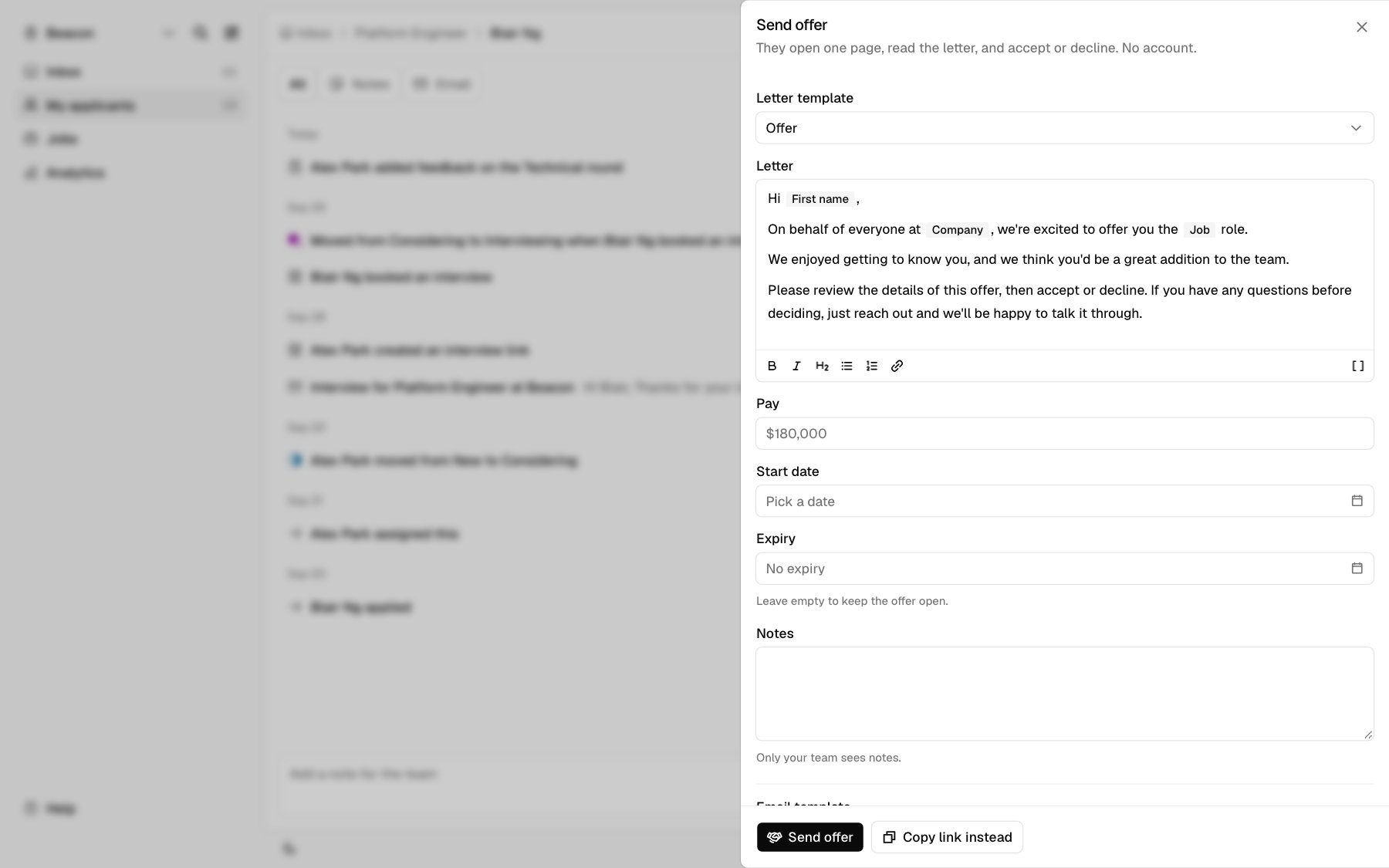 To share the link another way, click **Copy link instead**. Hotfix creates the offer and copies its link. Nothing is emailed to the candidate.
If Google Workspace isn't connected, the panel has no email fields. Click **Create offer and copy link**, then send the link yourself.
### Offer fields
| Field | What it does |
| - | - |
| **Letter template** | Fills the letter from one of your offer templates |
| **Letter** | The letter the candidate reads. Tokens fill in on their page. |
| **Pay** | Required. Free text, like \$180,000. Shown to the candidate. |
| **Start date** | Required. Shown to the candidate. |
| **Expiry** | Optional. The offer closes at the end of this day. Leave it empty to keep the offer open. |
| **Notes** | Optional. Only your team sees notes. The candidate never does. |
## What the candidate sees
The offer link opens a page with your company, the letter, the pay, and the start date. If you set an expiry, it shows the date to respond by and how many days are left.
* To accept, they click **Review and sign**, type their full name, and click **Accept offer**. The page says that typing a name records acceptance and is not a legal e-signature. After accepting, they can save a copy of the page.
* To decline, they click **Decline**, then **Decline offer** to confirm.
Both answers are final. A declined, expired, or rescinded offer tells the candidate to reply to your offer email with any questions.
## After they answer
The offer shows as a line in the candidate's details panel.
| Result | Offer line | Candidate status |
| - | - | - |
| Waiting | Offer, pay, and the due date or start date | Stays **Interviewing** |
| Accepted | Accepted by the name they typed, start date | Moves to **Hired** |
| Declined | Offer declined, pay | **Interviewing** |
| Expired | Offer expired, pay | **Interviewing** |
| Rescinded | Offer rescinded, pay | No change |
A declined or expired offer doesn't move a **Hired** candidate back.
Click the offer line under **Offer** to act on it:
* **View offer** opens the candidate's page. Available while the offer is waiting, and after it's accepted.
* **Copy link** copies the offer link. Available while the offer is waiting.
* **Rescind** withdraws an offer that's still waiting.
## Rescind an offer
On the candidate's record, click the offer line under **Offer**, then
**Rescind**.
Click **Rescind offer**. To back out, click **Keep offer**.
The candidate's link stops working. This can't be undone. Hotfix doesn't email the candidate, so let them know yourself. You can only rescind an offer that hasn't been answered. Once a candidate accepts, rescinding isn't available. If the hire falls through, change their status on the record.
## Related
* [Schedule interviews](/help/interviews) before you make an offer.
* [Integrations](/help/integrations) to connect Google Workspace.
* [Webhooks](/webhooks) to get an alert when an offer is accepted or declined.
* To send offers from your own tools, see [Offers and mail](/offers-and-mail) for the API and MCP.
This documentation is built and hosted on [Mintlify](https://mintlify.com), a developer documentation platform.
To share the link another way, click **Copy link instead**. Hotfix creates the offer and copies its link. Nothing is emailed to the candidate.
If Google Workspace isn't connected, the panel has no email fields. Click **Create offer and copy link**, then send the link yourself.
### Offer fields
| Field | What it does |
| - | - |
| **Letter template** | Fills the letter from one of your offer templates |
| **Letter** | The letter the candidate reads. Tokens fill in on their page. |
| **Pay** | Required. Free text, like \$180,000. Shown to the candidate. |
| **Start date** | Required. Shown to the candidate. |
| **Expiry** | Optional. The offer closes at the end of this day. Leave it empty to keep the offer open. |
| **Notes** | Optional. Only your team sees notes. The candidate never does. |
## What the candidate sees
The offer link opens a page with your company, the letter, the pay, and the start date. If you set an expiry, it shows the date to respond by and how many days are left.
* To accept, they click **Review and sign**, type their full name, and click **Accept offer**. The page says that typing a name records acceptance and is not a legal e-signature. After accepting, they can save a copy of the page.
* To decline, they click **Decline**, then **Decline offer** to confirm.
Both answers are final. A declined, expired, or rescinded offer tells the candidate to reply to your offer email with any questions.
## After they answer
The offer shows as a line in the candidate's details panel.
| Result | Offer line | Candidate status |
| - | - | - |
| Waiting | Offer, pay, and the due date or start date | Stays **Interviewing** |
| Accepted | Accepted by the name they typed, start date | Moves to **Hired** |
| Declined | Offer declined, pay | **Interviewing** |
| Expired | Offer expired, pay | **Interviewing** |
| Rescinded | Offer rescinded, pay | No change |
A declined or expired offer doesn't move a **Hired** candidate back.
Click the offer line under **Offer** to act on it:
* **View offer** opens the candidate's page. Available while the offer is waiting, and after it's accepted.
* **Copy link** copies the offer link. Available while the offer is waiting.
* **Rescind** withdraws an offer that's still waiting.
## Rescind an offer
On the candidate's record, click the offer line under **Offer**, then
**Rescind**.
Click **Rescind offer**. To back out, click **Keep offer**.
The candidate's link stops working. This can't be undone. Hotfix doesn't email the candidate, so let them know yourself. You can only rescind an offer that hasn't been answered. Once a candidate accepts, rescinding isn't available. If the hire falls through, change their status on the record.
## Related
* [Schedule interviews](/help/interviews) before you make an offer.
* [Integrations](/help/integrations) to connect Google Workspace.
* [Webhooks](/webhooks) to get an alert when an offer is accepted or declined.
* To send offers from your own tools, see [Offers and mail](/offers-and-mail) for the API and MCP.
This documentation is built and hosted on [Mintlify](https://mintlify.com), a developer documentation platform.