> ## Documentation Index
> Fetch the complete documentation index at: https://docs.hotfix.jobs/llms.txt
> Use this file to discover all available pages before exploring further.
> ## Agent Instructions
> Product noun is jobs.
> MCP at https://rest.hotfix.jobs/mcp is the hiring contract for agents. Clients sign in with Hotfix; API keys are for HTTP only.
> Do not invent unpublished REST or hiring stats. Webhooks are set up in the app; there is no REST route or MCP tool to manage them.
> Do not mention Greenhouse, Ashby, Quick Apply, or claim.
> Creating a draft, offer, or booking link does not send email.
# Locations and departments
> Keep a saved list of places and departments to pick from when you write a job.
Locations and departments are saved lists. They make the job editor faster: you pick from the list instead of typing the same office or team each time. Owners and Admins manage both lists in Settings.
Each list holds up to 50 entries.
## Locations
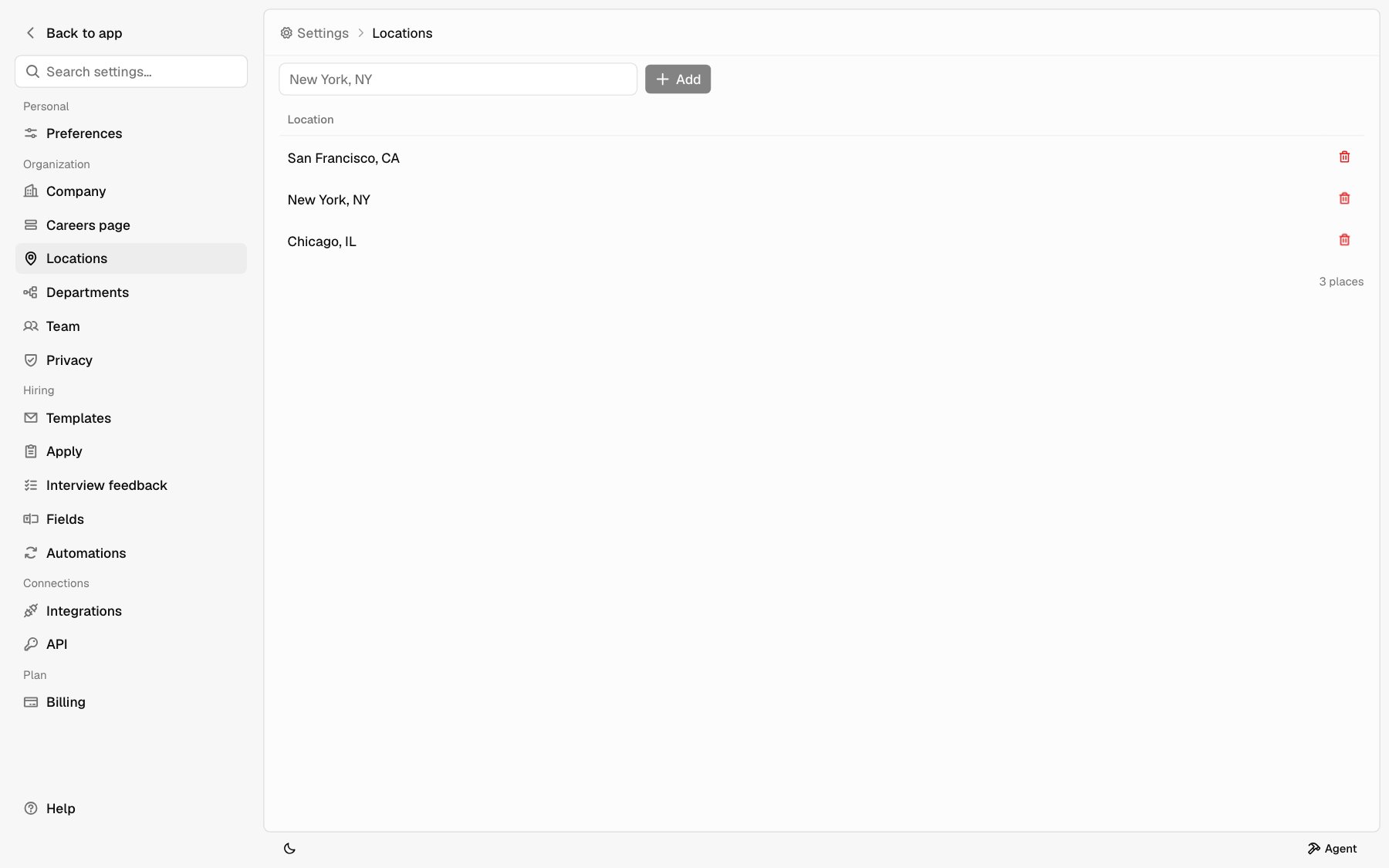
Open **Settings** > **Locations**. The table lists your saved places.
### Add a location
Type a city or office in the box at the top, like New York, NY.
Click **Add** or press Enter. It saves right away.
Hotfix tidies each place the same way it does on a job. Use City, State or City, Country: a place Hotfix doesn't recognize isn't saved. A country or Remote on its own isn't kept as a location. To hire across a country, add it under **Countries** on the job instead. See [Locations and countries](/help/post-a-job#locations-and-countries).
A place that's already on the list isn't added twice, even with different capitals.
### Remove a location
Click the trash icon (**Remove**) on its row. It's removed right away, with no confirm step.
 ## Departments
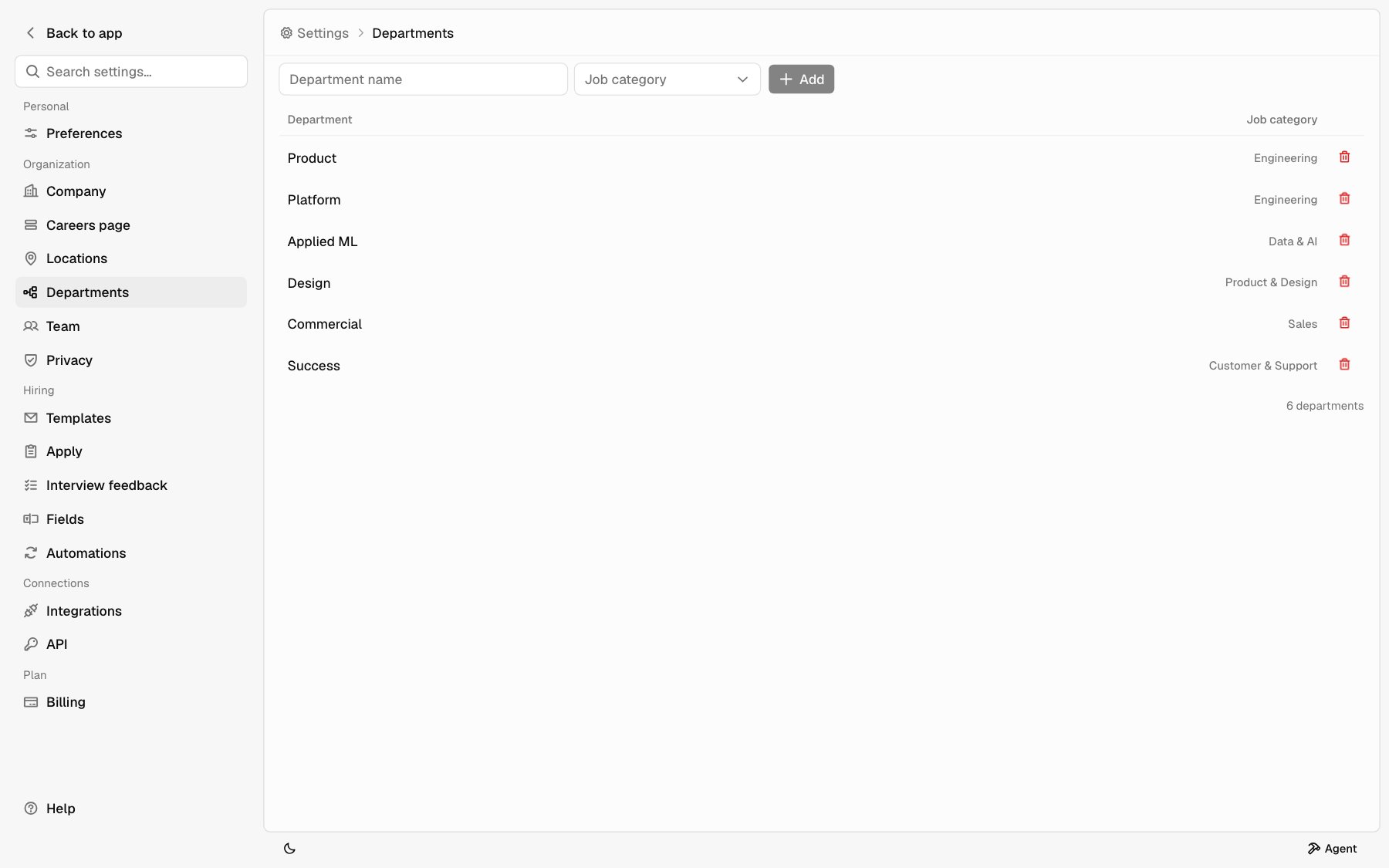
Open **Settings** > **Departments**. The table shows each **Department** and its **Job category**.
A department belongs to one category, the same categories you pick on a job: Engineering, Data & AI, Product & Design, Sales, Marketing, Customer & Support, People & Recruiting, Operations, Finance & Legal, or Leadership.
### Add a department
Type the name in **Department name**, like Platform. Up to 80 characters.
Choose its **Job category**.
Click **Add**. It saves right away.
You can use the same name under two categories. Within one category, a name that's already there isn't added again.
### Remove a department
Click the trash icon (**Remove**) on its row. It's removed right away, with no confirm step.
## Departments
Open **Settings** > **Departments**. The table shows each **Department** and its **Job category**.
A department belongs to one category, the same categories you pick on a job: Engineering, Data & AI, Product & Design, Sales, Marketing, Customer & Support, People & Recruiting, Operations, Finance & Legal, or Leadership.
### Add a department
Type the name in **Department name**, like Platform. Up to 80 characters.
Choose its **Job category**.
Click **Add**. It saves right away.
You can use the same name under two categories. Within one category, a name that's already there isn't added again.
### Remove a department
Click the trash icon (**Remove**) on its row. It's removed right away, with no confirm step.
 ## Rename an entry
There's no edit. Remove the entry and add it again with the new name. Jobs that used the old name keep it until you change them.
## In the job editor
When you write a job, both lists show up in the right panel. See [Job details](/help/post-a-job#job-details).
* **Locations**: pick a saved place or type a new one.
* **Department**: pick a category first. Then choose from that category's departments, or type a new one. Changing the category clears the department.
Typing a new place or department on a job adds it to the saved list when you save the job, as long as the list has room.
## When you remove an entry
Removing a location or department only changes the saved list. Jobs that already use it keep it, and it stays on your careers page for those jobs.
If you save one of those jobs again, its places and department go back on the saved list. To drop a place or department for good, change it on each job that uses it too.
## On your careers page
Your [careers page](/careers-page) groups jobs by category. Within a category, jobs with a department sit under a heading with that department's name, in A to Z order. Jobs without a department come first. A job's page also shows its department.
The **Location** filter lists the places on your open jobs, not your saved list. It shows when your jobs have more than one place. The **Department** filter lists each category on your open jobs, with its departments under it. It shows when your jobs span more than one category or have departments.
Departments are for your careers page only. They don't show in Hotfix search.
## Related
* [Post a job](/help/post-a-job)
* [Careers page](/careers-page)
* [Company profile](/help/company)
This documentation is built and hosted on [Mintlify](https://mintlify.com), a developer documentation platform.
## Rename an entry
There's no edit. Remove the entry and add it again with the new name. Jobs that used the old name keep it until you change them.
## In the job editor
When you write a job, both lists show up in the right panel. See [Job details](/help/post-a-job#job-details).
* **Locations**: pick a saved place or type a new one.
* **Department**: pick a category first. Then choose from that category's departments, or type a new one. Changing the category clears the department.
Typing a new place or department on a job adds it to the saved list when you save the job, as long as the list has room.
## When you remove an entry
Removing a location or department only changes the saved list. Jobs that already use it keep it, and it stays on your careers page for those jobs.
If you save one of those jobs again, its places and department go back on the saved list. To drop a place or department for good, change it on each job that uses it too.
## On your careers page
Your [careers page](/careers-page) groups jobs by category. Within a category, jobs with a department sit under a heading with that department's name, in A to Z order. Jobs without a department come first. A job's page also shows its department.
The **Location** filter lists the places on your open jobs, not your saved list. It shows when your jobs have more than one place. The **Department** filter lists each category on your open jobs, with its departments under it. It shows when your jobs span more than one category or have departments.
Departments are for your careers page only. They don't show in Hotfix search.
## Related
* [Post a job](/help/post-a-job)
* [Careers page](/careers-page)
* [Company profile](/help/company)
This documentation is built and hosted on [Mintlify](https://mintlify.com), a developer documentation platform.