> ## Documentation Index
> Fetch the complete documentation index at: https://docs.hotfix.jobs/llms.txt
> Use this file to discover all available pages before exploring further.
> ## Agent Instructions
> Product noun is jobs.
> MCP at https://rest.hotfix.jobs/mcp is the hiring contract for agents. Clients sign in with Hotfix; API keys are for HTTP only.
> Do not invent unpublished REST or hiring stats. Webhooks are set up in the app; there is no REST route or MCP tool to manage them.
> Do not mention Greenhouse, Ashby, Quick Apply, or claim.
> Creating a draft, offer, or booking link does not send email.
# Schedule interviews
> Send a candidate a booking link from their record, or attach an interview you already put on your calendar.
You schedule interviews from a candidate's record in the inbox. Hotfix gives the candidate a booking link. They pick a time when everyone in the meeting is free, and the interview lands on the interviewer's calendar.
## Before you start
* Connect Google Workspace under **Settings** > **Integrations**. Interviewers come from your team members whose email is on that Workspace. Until it's connected, the record shows **Connect Workspace** instead of **Schedule interview**. See [Integrations](/help/integrations).
* To use Zoom for the meeting, connect Zoom on the same page.
* The candidate must be **Considering** or **Interviewing**. You can't schedule for a **New**, **Hired**, or **Rejected** candidate.
## Schedule an interview
In the inbox, open the candidate's record. See [Candidate
record](/help/candidate-record).
In the details panel, click **Schedule interview**. If the candidate is
already **Interviewing**, the button reads **Schedule another interview**.
When **Send offer** or **Add feedback** is the main button, find scheduling
under the **⋯** menu next to it.
Pick the stage, length, interviewer, and meeting type. Change the
availability if you need to. Add a note for the candidate. The options are
below.
Pick an **Email template**, then edit the **Subject** and **Email**. The
email must include the **Booking link** token.
Click **Send invite**. Hotfix creates the booking link and emails the
candidate.
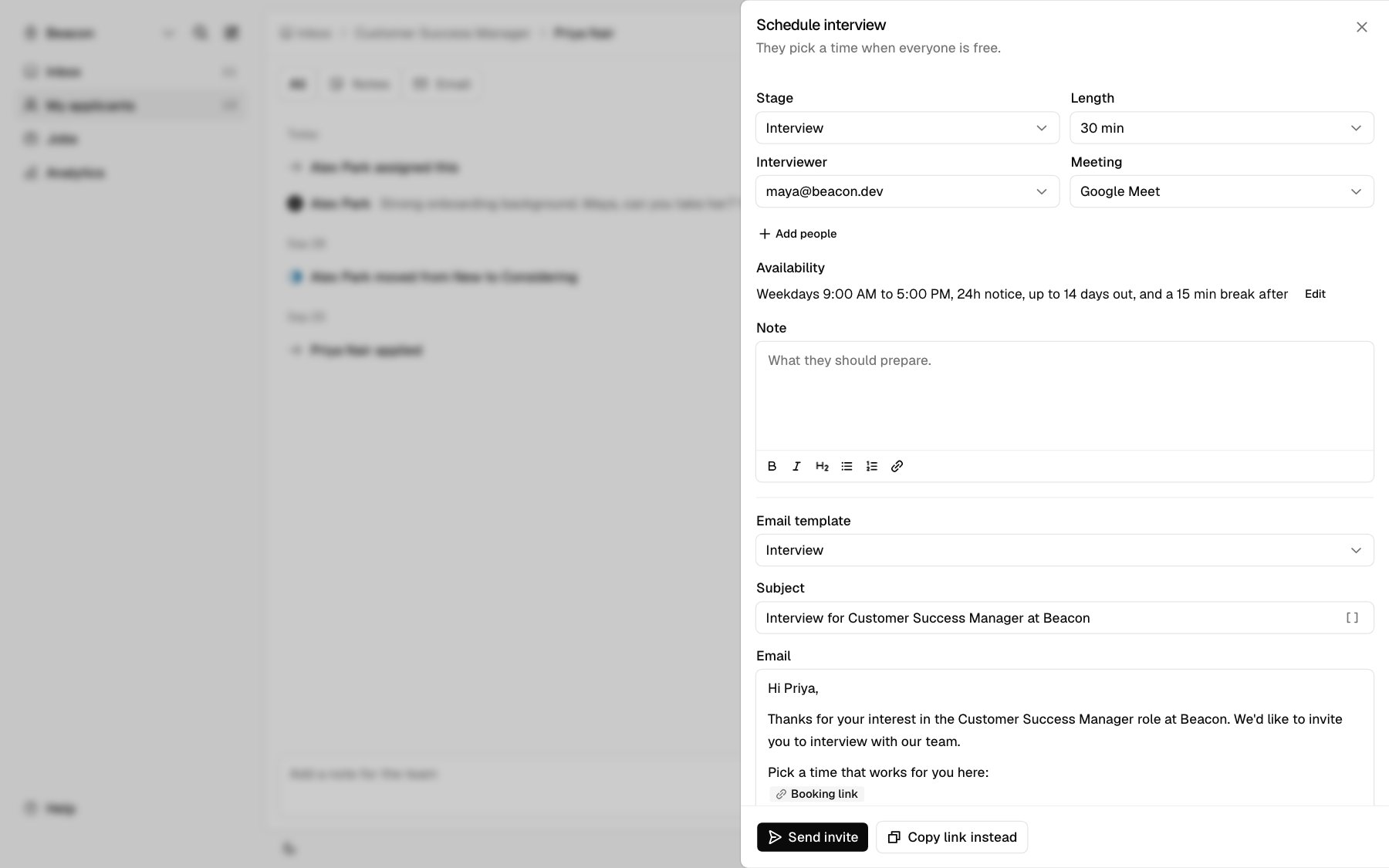 To share the link another way, click **Copy link instead**. Hotfix creates the link and copies it. Nothing is emailed to the candidate.
### Meeting options
The length, availability, and meeting start from your defaults under **Settings** > **Preferences** > **Scheduling**. See [Preferences](/help/preferences#scheduling).
| Option | Choices |
| - | - |
| **Stage** | Phone screen, Hiring manager, Technical, Final, or Interview (default) |
| **Length** | 15, 30 (default), 45, 60, 90, or 120 min |
| **Interviewer** | Any team member on your Google Workspace. The interview goes on their calendar. Defaults to you when you're on it. |
| **Meeting** | Google Meet (default), Zoom, or Phone. Phone adds no video link. Zoom shows only while Zoom is connected. |
| **Note** | What the candidate should prepare. It shows on the booking page and in the calendar event. |
The stage names the interview on the record and in the calendar event title.
### Add more people
Click **Add people** to bring others into the meeting.
* **Also in the meeting**: check teammates from your Workspace. If the job has a [hiring team](/help/post-a-job#hiring-team), its Interviewers start checked. Uncheck anyone who isn't joining this round.
* **Other emails**: type an email and click **Add**. Use this for people without a Hotfix account. Hotfix only offers times it can see are free on their calendar.
Up to 7 people can join besides the interviewer. Everyone gets the calendar invite when the candidate books.
### Availability
The **Availability** line sums up when the candidate can book, like "Weekdays 9:00 AM to 5:00 PM, 24h notice, up to 14 days out, and a 15 min break after". Click **Edit** to change it.
| Setting | What it does | Default |
| - | - | - |
| **First time** | The earliest a meeting can start each day | 9:00 AM |
| **Last time** | The latest a meeting can end each day | 5:00 PM |
| **Minimum notice** | How soon the earliest slot can be, in hours (0 to 168) | 24 hours |
| **Days ahead** | How far out the candidate can book, in days (1 to 28) | 14 days |
| **Break after** | Time kept free after the meeting: None, 15, 30, 45, or 60 min | 15 min |
Times are weekdays only, in the interviewer's calendar time zone. Hotfix offers a start every 30 minutes and skips any time when the interviewer or another attendee is busy.
## What the candidate gets
When you click **Send invite**, the candidate gets your email with the booking link. The link opens a page with the stage, the length, who the meeting is with, your note, and the open times. They can switch the time zone the times are shown in. They pick a time and confirm. No account is needed.
Once they book:
* The interview goes on the interviewer's calendar with the candidate and everyone you added. Google Calendar sends each of them the invite.
* Google Meet adds a Meet link. Zoom adds a Zoom link. Phone adds neither.
* A candidate who was **Considering** moves to **Interviewing**.
* The record shows the stage and time in the details panel.
The candidate can reschedule or cancel from the same booking page until 24 hours before the interview. After that, the time is locked for them.
A candidate has one open booking link at a time. While a link is open, you won't see **Schedule interview** on their record. Cancel the link first if you need a new one.
## Attach a calendar event
If you already put the interview on your Google Calendar yourself, attach it to the record instead.
On the candidate's record, click **⋯** (**More actions**) next to the main
button, then **Attach calendar event**.
Paste the Google Calendar event link. Use the event's own link, not a Meet
or Zoom URL.
Click **Preview** to check the title and time. Then click **Attach**.
Hotfix reads the event through its organizer's calendar when the organizer is on your Hotfix team. Otherwise it reads the event as you, so you need to be able to see it in Google Calendar.
Attaching sends nothing to the candidate and doesn't change the event. A candidate who was **Considering** moves to **Interviewing**.
## Reschedule or cancel
Each interview shows as a line under **Interviews** in the candidate's details panel. Click it to see the actions.
| Action | What happens |
| - | - |
| **Copy link** | Copies the Meet or Zoom link for a booked interview, or the booking link for one that isn't booked yet. |
| **Reschedule** | For a booked interview. Opens the same panel. Click **Send new link** to cancel the booked time and email a new booking link, or **Copy link instead** to cancel it and only copy the new link. Hidden while another booking link is open. |
| **Cancel** | On a booked interview, removes it from the calendar. On an open booking link, the link stops working. |
Hotfix doesn't email the candidate when you cancel. When a booked interview is removed from the calendar, Google Calendar sends its cancellation notice to the people on the event. Canceling doesn't reject the candidate or change their status.
## After the interview
When the interview's end time passes, everyone on it adds feedback from the record: a verdict and notes. Each person's feedback stays hidden from the rest of the panel until they add their own. See [Interview feedback](/help/feedback).
## Related
* [Interview feedback](/help/feedback) once an interview ends.
* [Send offers](/help/offers) once interviews are done.
* [Integrations](/help/integrations) to connect Google Workspace and Zoom.
* [Candidate record](/help/candidate-record) for everything else on the record.
* [Webhooks](/webhooks) to get an alert when an interview is booked or canceled.
* To schedule from your own tools, see [Interviews](/interviews) for the API and MCP.
This documentation is built and hosted on [Mintlify](https://mintlify.com), a developer documentation platform.
To share the link another way, click **Copy link instead**. Hotfix creates the link and copies it. Nothing is emailed to the candidate.
### Meeting options
The length, availability, and meeting start from your defaults under **Settings** > **Preferences** > **Scheduling**. See [Preferences](/help/preferences#scheduling).
| Option | Choices |
| - | - |
| **Stage** | Phone screen, Hiring manager, Technical, Final, or Interview (default) |
| **Length** | 15, 30 (default), 45, 60, 90, or 120 min |
| **Interviewer** | Any team member on your Google Workspace. The interview goes on their calendar. Defaults to you when you're on it. |
| **Meeting** | Google Meet (default), Zoom, or Phone. Phone adds no video link. Zoom shows only while Zoom is connected. |
| **Note** | What the candidate should prepare. It shows on the booking page and in the calendar event. |
The stage names the interview on the record and in the calendar event title.
### Add more people
Click **Add people** to bring others into the meeting.
* **Also in the meeting**: check teammates from your Workspace. If the job has a [hiring team](/help/post-a-job#hiring-team), its Interviewers start checked. Uncheck anyone who isn't joining this round.
* **Other emails**: type an email and click **Add**. Use this for people without a Hotfix account. Hotfix only offers times it can see are free on their calendar.
Up to 7 people can join besides the interviewer. Everyone gets the calendar invite when the candidate books.
### Availability
The **Availability** line sums up when the candidate can book, like "Weekdays 9:00 AM to 5:00 PM, 24h notice, up to 14 days out, and a 15 min break after". Click **Edit** to change it.
| Setting | What it does | Default |
| - | - | - |
| **First time** | The earliest a meeting can start each day | 9:00 AM |
| **Last time** | The latest a meeting can end each day | 5:00 PM |
| **Minimum notice** | How soon the earliest slot can be, in hours (0 to 168) | 24 hours |
| **Days ahead** | How far out the candidate can book, in days (1 to 28) | 14 days |
| **Break after** | Time kept free after the meeting: None, 15, 30, 45, or 60 min | 15 min |
Times are weekdays only, in the interviewer's calendar time zone. Hotfix offers a start every 30 minutes and skips any time when the interviewer or another attendee is busy.
## What the candidate gets
When you click **Send invite**, the candidate gets your email with the booking link. The link opens a page with the stage, the length, who the meeting is with, your note, and the open times. They can switch the time zone the times are shown in. They pick a time and confirm. No account is needed.
Once they book:
* The interview goes on the interviewer's calendar with the candidate and everyone you added. Google Calendar sends each of them the invite.
* Google Meet adds a Meet link. Zoom adds a Zoom link. Phone adds neither.
* A candidate who was **Considering** moves to **Interviewing**.
* The record shows the stage and time in the details panel.
The candidate can reschedule or cancel from the same booking page until 24 hours before the interview. After that, the time is locked for them.
A candidate has one open booking link at a time. While a link is open, you won't see **Schedule interview** on their record. Cancel the link first if you need a new one.
## Attach a calendar event
If you already put the interview on your Google Calendar yourself, attach it to the record instead.
On the candidate's record, click **⋯** (**More actions**) next to the main
button, then **Attach calendar event**.
Paste the Google Calendar event link. Use the event's own link, not a Meet
or Zoom URL.
Click **Preview** to check the title and time. Then click **Attach**.
Hotfix reads the event through its organizer's calendar when the organizer is on your Hotfix team. Otherwise it reads the event as you, so you need to be able to see it in Google Calendar.
Attaching sends nothing to the candidate and doesn't change the event. A candidate who was **Considering** moves to **Interviewing**.
## Reschedule or cancel
Each interview shows as a line under **Interviews** in the candidate's details panel. Click it to see the actions.
| Action | What happens |
| - | - |
| **Copy link** | Copies the Meet or Zoom link for a booked interview, or the booking link for one that isn't booked yet. |
| **Reschedule** | For a booked interview. Opens the same panel. Click **Send new link** to cancel the booked time and email a new booking link, or **Copy link instead** to cancel it and only copy the new link. Hidden while another booking link is open. |
| **Cancel** | On a booked interview, removes it from the calendar. On an open booking link, the link stops working. |
Hotfix doesn't email the candidate when you cancel. When a booked interview is removed from the calendar, Google Calendar sends its cancellation notice to the people on the event. Canceling doesn't reject the candidate or change their status.
## After the interview
When the interview's end time passes, everyone on it adds feedback from the record: a verdict and notes. Each person's feedback stays hidden from the rest of the panel until they add their own. See [Interview feedback](/help/feedback).
## Related
* [Interview feedback](/help/feedback) once an interview ends.
* [Send offers](/help/offers) once interviews are done.
* [Integrations](/help/integrations) to connect Google Workspace and Zoom.
* [Candidate record](/help/candidate-record) for everything else on the record.
* [Webhooks](/webhooks) to get an alert when an interview is booked or canceled.
* To schedule from your own tools, see [Interviews](/interviews) for the API and MCP.
This documentation is built and hosted on [Mintlify](https://mintlify.com), a developer documentation platform.