> ## Documentation Index
> Fetch the complete documentation index at: https://docs.hotfix.jobs/llms.txt
> Use this file to discover all available pages before exploring further.
> ## Agent Instructions
> Product noun is jobs.
> MCP at https://rest.hotfix.jobs/mcp is the hiring contract for agents. Clients sign in with Hotfix; API keys are for HTTP only.
> Do not invent unpublished REST or hiring stats. Webhooks are set up in the app; there is no REST route or MCP tool to manage them.
> Do not mention Greenhouse, Ashby, Quick Apply, or claim.
> Creating a draft, offer, or booking link does not send email.
# Company profile
> Set your logo, tagline, description, and company facts, and see where each one shows.
Open **Settings** > **Company** to edit how your company looks to candidates. Owners and Admins can change it.
Your profile shows in two places:
* Your [careers page](/careers-page) header, at `apply.hotfix.jobs`.
* Your company page on Hotfix. Click **View public page** at the top right of **Settings** > **Company** to open it in a new tab.
Your company name isn't edited here.
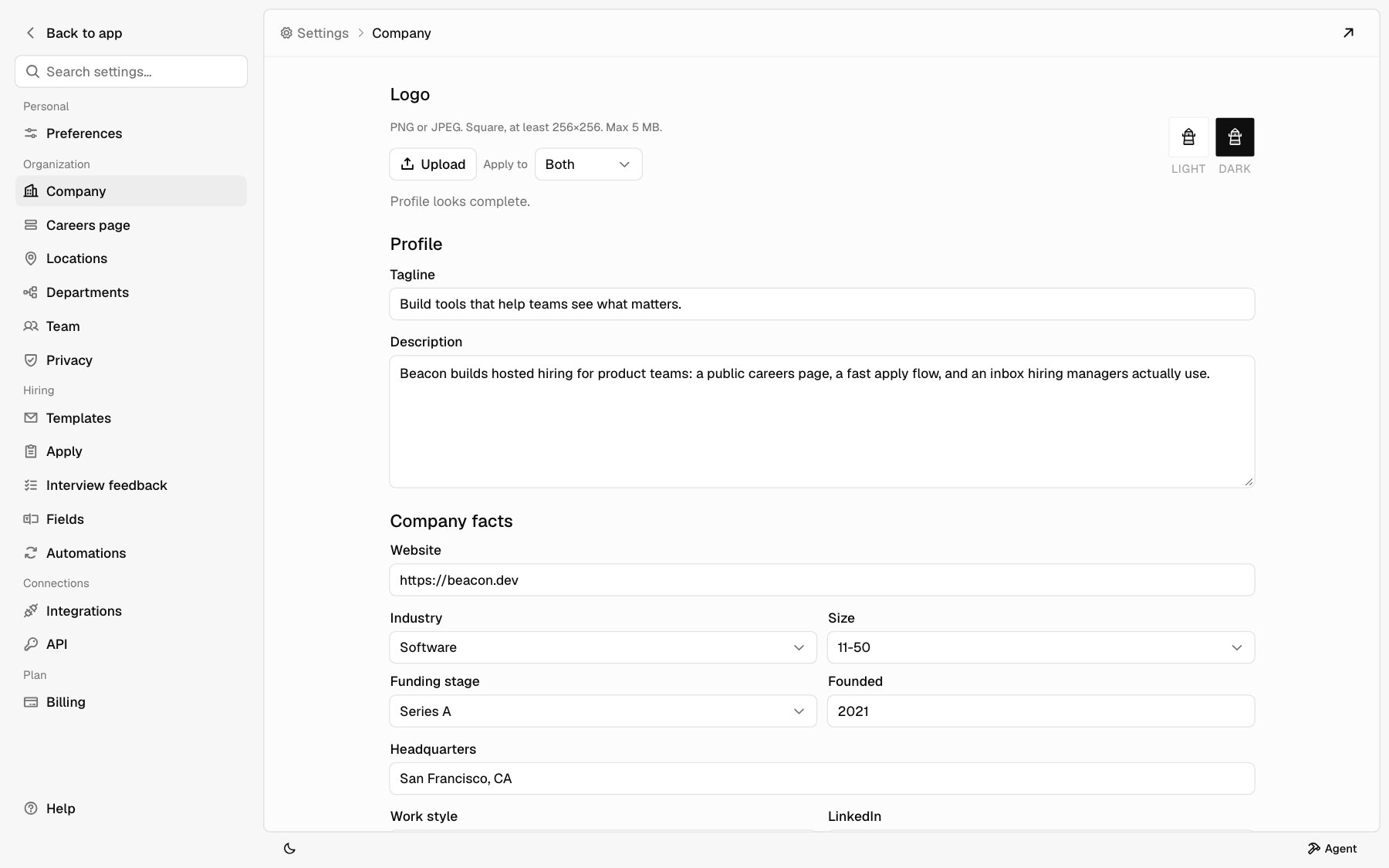 ## Logo
Next to **Apply to**, choose **Both**, **Light only**, or **Dark only**. Use
**Light only** and **Dark only** to upload a different logo for light and
dark mode.
Click **Upload** and choose a file. The logo saves right away and you see
**Logo updated.**
| Rule | Limit |
| - | - |
| Format | PNG or JPEG |
| Shape | Square, at least 256×256 |
| Size | Up to 5 MB |
The **Light** and **Dark** previews on the right show what you uploaded. Until you upload one, a preview shows your company's first letter.
## Profile checklist
Under the logo, Hotfix lists what your profile is missing: **Tagline**, **Description**, **Industry**, **Company size**, **Tech stack**, or **Benefits**. When all are filled in, it says **Profile looks complete.**
When you first set up your company, Hotfix may fill in your profile for you. While it works, you see **Filling in your company profile with AI. Anything you edit stays.**
## Edit your profile
Edit any field below. See [Fields](#fields) for each one.
Click **Save changes** at the bottom. It's off until you change something.
You see **Profile updated** when it saves.
To clear a field, empty it, or pick **Not set** in a list, then save.
If a value isn't accepted, you see **Couldn't save. Try again.** and nothing saves. Check the limits in the table below.
## Fields
| Field | What to enter | Limit |
| - | - | - |
| **Tagline** | One line about your company. | 200 characters |
| **Description** | What you do, who works there, and what makes the team different. | 4,000 characters |
| **Website** | Your site, like `acme.com`. Hotfix adds `https://`. | 500 characters |
| **Industry** | Pick one from the list, like AI, Fintech, or Developer Tools. | |
| **Size** | 1-50, 51-200, 201-1000, or 1000+ | |
| **Funding stage** | Pre-seed, Seed, Series A, Series B, Series C, Series D+, Public, Bootstrapped, Acquired, or Nonprofit | |
| **Founded** | The year, like `2019`. | A year from 1800 to 2030 |
| **Headquarters** | Your main office, like San Francisco, CA. | 200 characters |
| **Work style** | Remote, hybrid, or onsite | |
| **LinkedIn** | Your LinkedIn company page. | Must be a linkedin.com link |
| **Tech stack** | One per line, like React or Postgres. | Up to 15, each up to 50 characters |
| **Benefits** | One per line, like Health insurance. | Up to 20, each up to 100 characters |
In **Tech stack** and **Benefits**, blank lines and repeats are dropped when you save.
## Where each field shows
| Field | Careers page | Hotfix company page |
| - | - | - |
| Logo | Yes | Yes |
| **Tagline** | Yes, as the intro above your jobs | Yes, under your name |
| **Website** | Yes, as a link | Yes, as a button to visit your site |
| **Description** | No | Yes, under **About** |
| **Headquarters** | No | Yes |
| **Industry**, **Size**, **Funding stage**, **Work style**, **Founded** | No | Yes, as facts under your tagline |
| **LinkedIn** | No | Yes, as a LinkedIn button |
| **Tech stack** | No | Yes, under **Tech stack** |
| **Benefits** | No | Yes, under **Perks & benefits** |
When you embed your careers page on your own site, the bar with your logo, name, and website doesn't show, since your site already has it. The tagline still shows above your jobs. See [Embed on your site](/careers-page#embed-on-your-site).
To change your careers page's colors, font, and corners, see [Match your site](/careers-page#match-your-site).
## Related
* [Careers page](/careers-page)
* [Locations and departments](/help/locations-and-departments)
* [Team](/help/team)
This documentation is built and hosted on [Mintlify](https://mintlify.com), a developer documentation platform.
## Logo
Next to **Apply to**, choose **Both**, **Light only**, or **Dark only**. Use
**Light only** and **Dark only** to upload a different logo for light and
dark mode.
Click **Upload** and choose a file. The logo saves right away and you see
**Logo updated.**
| Rule | Limit |
| - | - |
| Format | PNG or JPEG |
| Shape | Square, at least 256×256 |
| Size | Up to 5 MB |
The **Light** and **Dark** previews on the right show what you uploaded. Until you upload one, a preview shows your company's first letter.
## Profile checklist
Under the logo, Hotfix lists what your profile is missing: **Tagline**, **Description**, **Industry**, **Company size**, **Tech stack**, or **Benefits**. When all are filled in, it says **Profile looks complete.**
When you first set up your company, Hotfix may fill in your profile for you. While it works, you see **Filling in your company profile with AI. Anything you edit stays.**
## Edit your profile
Edit any field below. See [Fields](#fields) for each one.
Click **Save changes** at the bottom. It's off until you change something.
You see **Profile updated** when it saves.
To clear a field, empty it, or pick **Not set** in a list, then save.
If a value isn't accepted, you see **Couldn't save. Try again.** and nothing saves. Check the limits in the table below.
## Fields
| Field | What to enter | Limit |
| - | - | - |
| **Tagline** | One line about your company. | 200 characters |
| **Description** | What you do, who works there, and what makes the team different. | 4,000 characters |
| **Website** | Your site, like `acme.com`. Hotfix adds `https://`. | 500 characters |
| **Industry** | Pick one from the list, like AI, Fintech, or Developer Tools. | |
| **Size** | 1-50, 51-200, 201-1000, or 1000+ | |
| **Funding stage** | Pre-seed, Seed, Series A, Series B, Series C, Series D+, Public, Bootstrapped, Acquired, or Nonprofit | |
| **Founded** | The year, like `2019`. | A year from 1800 to 2030 |
| **Headquarters** | Your main office, like San Francisco, CA. | 200 characters |
| **Work style** | Remote, hybrid, or onsite | |
| **LinkedIn** | Your LinkedIn company page. | Must be a linkedin.com link |
| **Tech stack** | One per line, like React or Postgres. | Up to 15, each up to 50 characters |
| **Benefits** | One per line, like Health insurance. | Up to 20, each up to 100 characters |
In **Tech stack** and **Benefits**, blank lines and repeats are dropped when you save.
## Where each field shows
| Field | Careers page | Hotfix company page |
| - | - | - |
| Logo | Yes | Yes |
| **Tagline** | Yes, as the intro above your jobs | Yes, under your name |
| **Website** | Yes, as a link | Yes, as a button to visit your site |
| **Description** | No | Yes, under **About** |
| **Headquarters** | No | Yes |
| **Industry**, **Size**, **Funding stage**, **Work style**, **Founded** | No | Yes, as facts under your tagline |
| **LinkedIn** | No | Yes, as a LinkedIn button |
| **Tech stack** | No | Yes, under **Tech stack** |
| **Benefits** | No | Yes, under **Perks & benefits** |
When you embed your careers page on your own site, the bar with your logo, name, and website doesn't show, since your site already has it. The tagline still shows above your jobs. See [Embed on your site](/careers-page#embed-on-your-site).
To change your careers page's colors, font, and corners, see [Match your site](/careers-page#match-your-site).
## Related
* [Careers page](/careers-page)
* [Locations and departments](/help/locations-and-departments)
* [Team](/help/team)
This documentation is built and hosted on [Mintlify](https://mintlify.com), a developer documentation platform.