> ## Documentation Index
> Fetch the complete documentation index at: https://docs.hotfix.jobs/llms.txt
> Use this file to discover all available pages before exploring further.
> ## Agent Instructions
> Product noun is jobs.
> MCP at https://rest.hotfix.jobs/mcp is the hiring contract for agents. Clients sign in with Hotfix; API keys are for HTTP only.
> Do not invent unpublished REST or hiring stats. Webhooks are set up in the app; there is no REST route or MCP tool to manage them.
> Do not mention Greenhouse, Ashby, Quick Apply, or claim.
> Creating a draft, offer, or booking link does not send email.
# Automations
> Set up rules that update applications, draft emails, and schedule rejection letters for you.
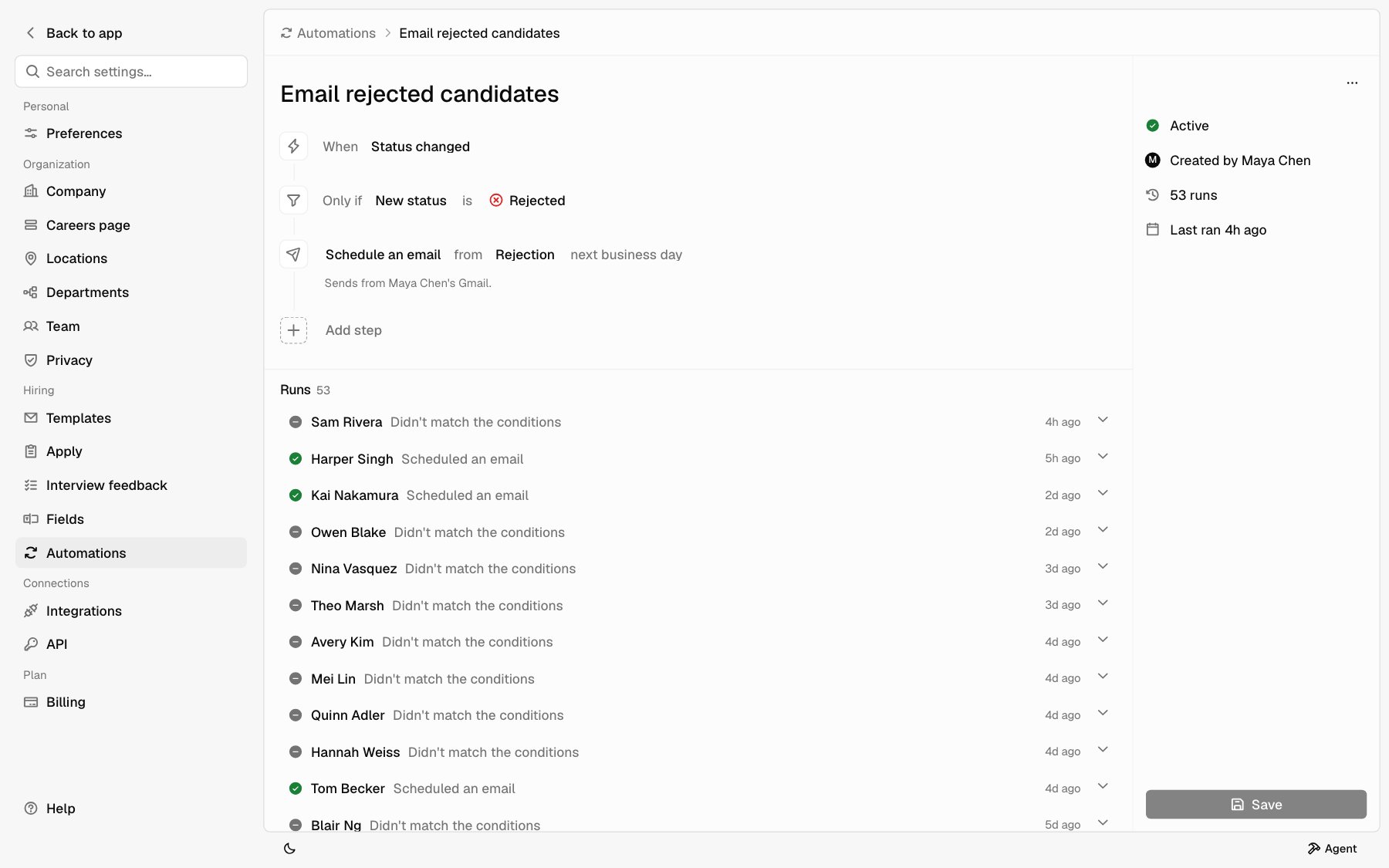
An automation is a rule: **When** something happens, **Only if** the application matches, **Then** take some actions. Automations run the same way every time. They don't use Agent credits.
You manage automations under **Settings** > **Automations**. Owners and Admins see this page. Members don't. See [Getting around](/help/getting-around#what-each-role-sees).
To build automations over the API or MCP instead, see [Automations](/automations).
## The automations list
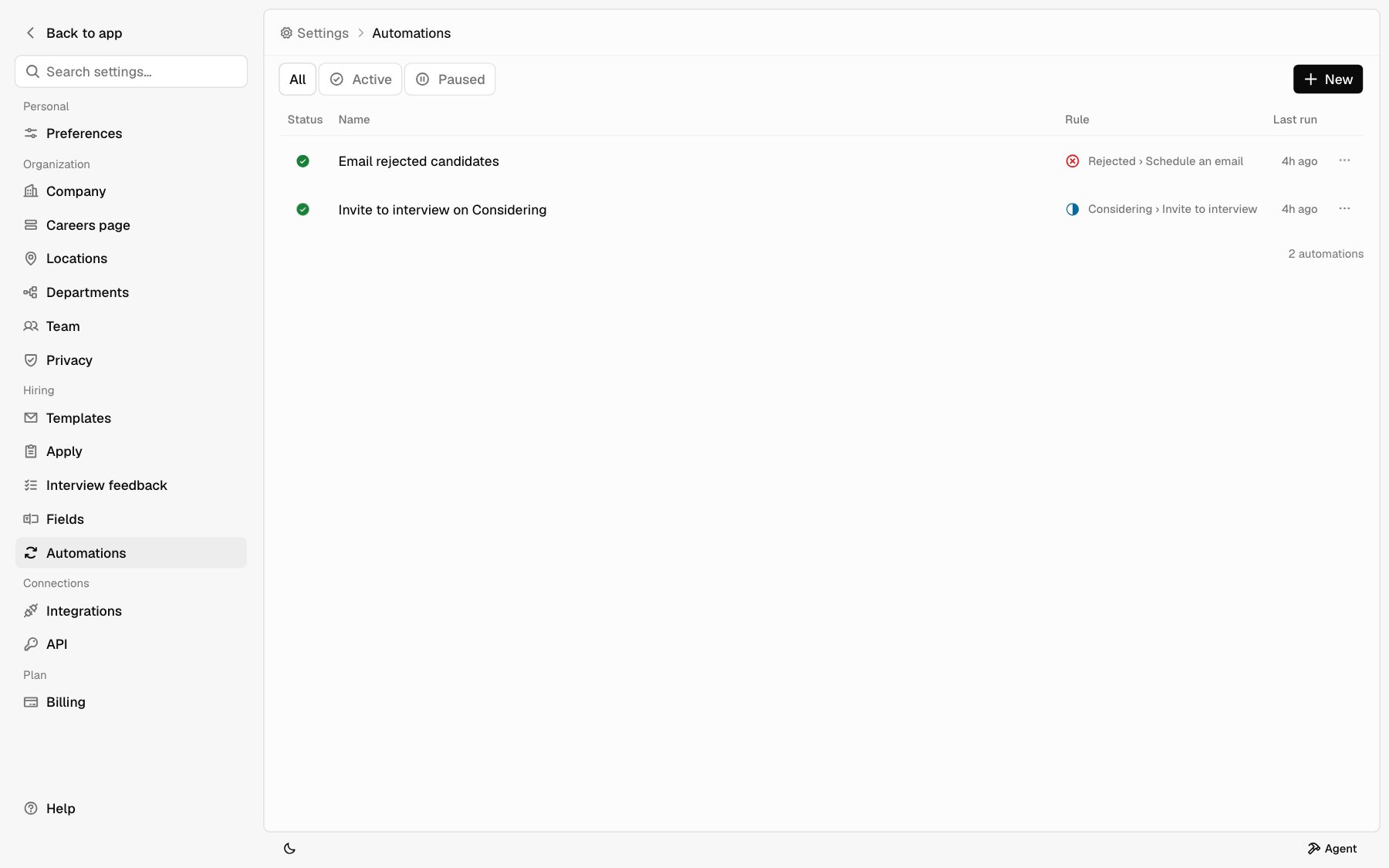
Open **Settings** > **Automations**. Each row is one automation.
| Column | What it shows |
| - | - |
| **Status** | A mark for **Active** or **Paused**. Click it to switch. |
| **Name** | The name you gave it. |
| **Rule** | The rule in short, like **Rejected › Schedule an email**. Hover it to see every action. |
| **Last run** | When it last ran, or **Never**. |
Use **All**, **Active**, and **Paused** above the list to filter it. Click a row to open the automation.
The **⋯** menu on a row has **Open**, **Pause** or **Activate**, and **Delete**.
 ### When you have none yet
With no automations, the page offers three ways to start:
* **New** opens a blank automation.
* **Ask Agent** opens Agent so you can describe the rule and have it drafted.
* **Install starter pack** adds three ready-made automations. It shows only if your company never installed the pack.
### The starter pack
The pack adds three automations. They arrive **Paused**, so nothing happens until you turn them on.
| Automation | What it does |
| - | - |
| **Email rejected candidates** | When an application moves to **Rejected**, schedules your **Rejection** template for the next business day. An applicant who fails a knockout question counts as a move to **Rejected**, so they hear back too. |
| **Invite to interview on Considering** | When an application moves to **Considering**, opens a booking link and drafts your **Interview** template with it. A person reviews and sends the email. |
| **Tell the pipeline when a job closes** | When a job closes, schedules your **Position closed** template for the next business day for everyone still **New** or **Considering**, then moves them to **Rejected**. **Interviewing** is left out. |
If you deleted your Interview template, the pack leaves out the second automation.
## Create an automation
Under **Settings** > **Automations**, click **New**. You can also search for **New automation** in Search.
Type a name at the top. If you leave it blank, the automation is named after its rule, like **Rejected › Schedule an email**.
Click the value next to **When** and pick a trigger. See [Triggers](#triggers).
Click **Add step** and pick **Only if…**. Choose a field, how to compare it, and a value. See [Conditions](#conditions).
Click **Add step** and pick an action under **Then**. Add as many as you need. They run in order. See [Actions](#actions).
Click **Create**. You need at least one action.
A new automation shows **Draft** until you create it. Once created, it's **Paused**. It doesn't run until you turn it on. See [Turn an automation on or off](#turn-an-automation-on-or-off).
To remove a condition or an action, hover the step, click its **⋯**, and pick **Remove**.
### When you have none yet
With no automations, the page offers three ways to start:
* **New** opens a blank automation.
* **Ask Agent** opens Agent so you can describe the rule and have it drafted.
* **Install starter pack** adds three ready-made automations. It shows only if your company never installed the pack.
### The starter pack
The pack adds three automations. They arrive **Paused**, so nothing happens until you turn them on.
| Automation | What it does |
| - | - |
| **Email rejected candidates** | When an application moves to **Rejected**, schedules your **Rejection** template for the next business day. An applicant who fails a knockout question counts as a move to **Rejected**, so they hear back too. |
| **Invite to interview on Considering** | When an application moves to **Considering**, opens a booking link and drafts your **Interview** template with it. A person reviews and sends the email. |
| **Tell the pipeline when a job closes** | When a job closes, schedules your **Position closed** template for the next business day for everyone still **New** or **Considering**, then moves them to **Rejected**. **Interviewing** is left out. |
If you deleted your Interview template, the pack leaves out the second automation.
## Create an automation
Under **Settings** > **Automations**, click **New**. You can also search for **New automation** in Search.
Type a name at the top. If you leave it blank, the automation is named after its rule, like **Rejected › Schedule an email**.
Click the value next to **When** and pick a trigger. See [Triggers](#triggers).
Click **Add step** and pick **Only if…**. Choose a field, how to compare it, and a value. See [Conditions](#conditions).
Click **Add step** and pick an action under **Then**. Add as many as you need. They run in order. See [Actions](#actions).
Click **Create**. You need at least one action.
A new automation shows **Draft** until you create it. Once created, it's **Paused**. It doesn't run until you turn it on. See [Turn an automation on or off](#turn-an-automation-on-or-off).
To remove a condition or an action, hover the step, click its **⋯**, and pick **Remove**.
 ## Triggers
The trigger is what starts the automation.
| Trigger | When it runs |
| - | - |
| **Application received** | A new application arrives in your Inbox. |
| **Status changed** | An application moves to a new status, by a person, a knockout, or an automation. |
| **Note added** | Someone adds a note to an application. |
| **Interview booked** | A candidate books from their booking link, or you attach an interview already on your calendar. |
| **Interview canceled** | An interview is canceled, by your team or the candidate. |
| **Interview rescheduled** | Your team reschedules a booked interview. |
| **Interview moved** | The candidate picks a new time from their booking page. |
| **Offer accepted** | The candidate accepts an offer. |
| **Offer declined** | The candidate declines an offer. |
| **Feedback added** | Someone on an interview adds their feedback. Editing it doesn't count. |
| **Panel feedback complete** | Everyone on an interview has added their feedback. Runs once per interview. |
| **Feedback overdue** | A day after an interview ends, someone on it still owes feedback. |
| **Job closed** | A job closes. Runs once for each application still **New**, **Considering**, or **Interviewing**. |
| **On a schedule** | At set times. See below. |
The three feedback triggers don't run while your company has [interview feedback turned off](/help/feedback#turn-feedback-off), and you can't pick them for a new automation.
### On a schedule
Pick **On a schedule**, then pick when it runs and the timezone.
* **When**: **Weekdays at 8:00 AM**, **Weekdays at 9:00 AM**, **Weekdays at 10:00 AM**, **Every day at 8:00 AM**, **Every day at 9:00 AM**, **Mondays at 8:00 AM**, **Mondays at 9:00 AM** (the default), **Mondays and Thursdays at 9:00 AM**, **Fridays at 5:00 PM**, or **1st of the month at 9:00 AM**.
* **Timezone**: **Eastern Time**, **Central Time** (the default), **Mountain Time**, **Arizona**, **Pacific Time**, **Alaska**, **Hawaii**, **Toronto**, **Vancouver**, **UTC**, **London**, **Paris**, **Tokyo**, or **Sydney**.
Each scheduled run checks applications in **New**, **Considering**, and **Interviewing**. It acts on each application once while that application stays in its status. If the application moves to another status, the automation can act on it again. One run acts on at most 50 applications, longest in their status first.
Use a schedule when you want to act after time passes, like a week in **New**.
## Conditions
Conditions narrow which applications the automation acts on. With no conditions, it acts on every application the trigger brings in.
Your first condition reads **Only if**. When you add a second, pick **And** to require every condition, or **Or** to require any one. The choice applies to all your conditions.
| Field | What it compares |
| - | - |
| **Status** | The application's status now. |
| **Previous status** | The status it moved from. Only with **Status changed**. |
| **New status** | The status it moved to. Only with **Status changed**. |
| **Job** | The job they applied to. |
| **Job title** | The job's title, as text. |
| **Knockout** | Whether they failed a knockout question. |
| **Has resume** | Whether they sent a resume. |
| **Assignee** | The teammate who owns the application. |
| **Applicant email** | The applicant's email address. |
| **Days since applied** | Days since they applied. |
| **Days in status** | Days in their current status. |
| **Apply answer** | Their answer to one question on your apply form. Pick the question, then the answer. |
| **Interview stage** | The interview's stage, like **Technical**. Only with a feedback trigger. |
| **Any overall verdict** | Whether anyone on the panel gave that overall verdict. Only with **Panel feedback complete**. |
To compare, pick **is**, **is not**, **is one of**, **is not one of**, **contains**, **greater than**, **at least**, **less than**, **at most**, **is empty**, **is not empty**, **is true**, or **is false**.
Automations apply to all your jobs. To limit one to a single job, add the condition **Job** **is** that job.
**Days in status** and **Days since applied** are about 0 when an event
trigger fires. To act after time passes, use **On a schedule**.
## Actions
Actions run in order, top to bottom.
| Action | What it does | Reaches the candidate? |
| - | - | - |
| **Set status** | Moves the application to the status you pick. | No |
| **Assign an owner** | Makes the teammate you pick the owner. They get a notification. | No |
| **Clear assignee** | Removes the owner. | No |
| **Add a note** | Adds the note you write to the record. | No |
| **Draft an email** | Leaves an email draft on the record. Use a template, or pick **Write it here** to write the subject and body. | Only after a person sends it |
| **Schedule an email** | Fills in a template and schedules it to send from Gmail. | Yes, on its own |
| **Invite to interview** | Opens a booking link on a calendar and drafts an email with the link. | Only after a person sends it |
**Schedule an email** is the only action that emails a candidate without a person clicking **Send**.
With a feedback trigger, an automation can't move someone to **Rejected** or schedule an email. A verdict informs the debrief; a person decides. Verdicts are only readable once the whole panel is in, so a rule can't tell someone a colleague's verdict before they've added their own. See [Interview feedback](/help/feedback).
Drafts show at the top of the candidate's record. See [Drafts from automations](/help/candidate-record#drafts-from-automations).
### Assign an owner
**Assign an owner** replaces an owner someone already picked. To keep theirs, add the condition **Assignee** **is empty**.
### Schedule an email
Pick a template and when it sends: **next business day**, **in 2 business days**, **in 3 business days**, or **in 5 business days**. Business days skip Saturday and Sunday. The email goes out at the same time of day the automation ran.
The email sends from the Gmail of the person who created the automation. The step says whose, like **Sends from your Gmail**.
The step is skipped, and the run says why, when:
* The automation's creator hasn't connected Google Workspace. See [Integrations](/help/integrations).
* An email is already waiting for the candidate.
When the application is in **Rejected**, the email is a rejection letter. Moving the application out of **Rejected** before it sends cancels it. To stop it for one person, cancel the scheduled email on their record. See [Change a scheduled email](/help/candidate-record#change-a-scheduled-email).
If an active automation emails applicants who move to **Rejected**, the
**Reject** dialog doesn't offer a second email. Rejecting is enough. See
[Reject an applicant](/help/candidate-record#reject-an-applicant).
### Invite to interview
Pick an email template that has the **Booking link** token. Only those templates show. See [Templates](/help/templates).
The automation opens a booking link on the calendar of the person who created it: 30 minutes, weekdays 9 AM to 5 PM, over the next 14 days. Then it drafts your template with the link filled in. A person reviews and sends the email. Nothing is booked until the candidate picks a time. See [Schedule interviews](/help/interviews).
The step is skipped, and the run says why, when:
* The automation's creator hasn't connected Google Workspace.
* The candidate already has an open booking link.
* An email is already waiting for the candidate.
### When one automation sets off another
**Set status** and **Add a note** can start other automations that use **Status changed** or **Note added**. An automation never starts itself.
## Turn an automation on or off
New automations start **Paused**. A paused automation doesn't run.
To turn one on, do one of these:
* In the list, click the status mark on the row and pick **Active**.
* In the list, click **⋯** on the row and pick **Activate**.
* Open the automation and pick **Active** from the status in the right panel.
* Ask Agent to turn it on. Agent shows a card, and the automation turns on when you click **Approve**.
To turn it off, pick **Paused** the same way, or **Pause** from the **⋯** menu.
## Edit an automation
Click the row to open it. Change the name, trigger, conditions, or actions, then click **Save**. **Save** stays off until you change something.
The right panel shows who created it, how many runs it has, and when it last ran.
## Delete an automation
In the list, click **⋯** on the row. Or open the automation and click **⋯**
at the top of the right panel.
Pick **Delete**, then click **Delete** to confirm.
The automation stops running and leaves the list. Its run history stays. You can't undo this.
## Runs
Open an automation and scroll down to **Runs**. For event triggers, a run is recorded each time the trigger fires, even when the conditions don't match. A scheduled automation records a run only for the applications it acts on. The newest runs are at the top.
Each run shows the candidate's name and what happened, like **Scheduled an email** or **Moved to Considering**. Click the name to open their record.
| Mark | Meaning |
| - | - |
| **Done** | The automation ran its actions. |
| **Skipped** | The application didn't match the conditions. It reads **Didn't match the conditions**. |
| **Failed** | Something went wrong. It reads **Failed:** and the reason. |
A run can be **Done** with an action that was skipped. It reads **Skipped** and the action, with the reason. For example, the creator hasn't connected Google Workspace.
Click a run to see more:
* **Trigger**: what started it.
* **Condition**: **Passed** or **Didn't match**.
* **Actions**: what it did.
* **Error**: why it failed, on a failed run.
* **Status**: **Done**, **Skipped**, or **Failed**.
A failed run stops at the action that failed. Actions before it already happened. Hotfix doesn't try a failed run again.
If an automation has no runs, you see **No runs yet**.
## Examples
### Email rejected candidates the next business day
This is the first automation in the starter pack. To build it yourself:
Under **Settings** > **Automations**, click **New**.
Set **When** to **Status changed**.
Click **Add step** > **Only if…**. Set it to **New status** **is** **Rejected**.
Click **Add step** > **Schedule an email**. Pick your Rejection template and **next business day**.
Click **Create**, then set the status to **Active**.
Now anyone you move to **Rejected**, and anyone who fails a knockout question, gets the letter the next business day. Make sure you've connected Google Workspace, since the letter sends from your Gmail.
### Invite Considering candidates to interview
This is the second automation in the starter pack. To build it yourself:
Under **Settings** > **Automations**, click **New**.
Set **When** to **Status changed**.
Click **Add step** > **Only if…**. Set it to **New status** **is** **Considering**.
Click **Add step** > **Invite to interview**. Pick a template with the **Booking link** token.
Click **Create**, then set the status to **Active**.
When you move someone to **Considering**, a draft invite with their booking link waits on their record. Open it, check it, and click **Send**.
## Related
* [Candidate record](/help/candidate-record)
* [Inbox](/help/inbox)
* [Schedule interviews](/help/interviews)
* [Templates](/help/templates)
* [Integrations](/help/integrations)
* [Getting around](/help/getting-around)
* [Webhooks](/webhooks) to get hiring events in your own systems
This documentation is built and hosted on [Mintlify](https://mintlify.com), a developer documentation platform.
## Triggers
The trigger is what starts the automation.
| Trigger | When it runs |
| - | - |
| **Application received** | A new application arrives in your Inbox. |
| **Status changed** | An application moves to a new status, by a person, a knockout, or an automation. |
| **Note added** | Someone adds a note to an application. |
| **Interview booked** | A candidate books from their booking link, or you attach an interview already on your calendar. |
| **Interview canceled** | An interview is canceled, by your team or the candidate. |
| **Interview rescheduled** | Your team reschedules a booked interview. |
| **Interview moved** | The candidate picks a new time from their booking page. |
| **Offer accepted** | The candidate accepts an offer. |
| **Offer declined** | The candidate declines an offer. |
| **Feedback added** | Someone on an interview adds their feedback. Editing it doesn't count. |
| **Panel feedback complete** | Everyone on an interview has added their feedback. Runs once per interview. |
| **Feedback overdue** | A day after an interview ends, someone on it still owes feedback. |
| **Job closed** | A job closes. Runs once for each application still **New**, **Considering**, or **Interviewing**. |
| **On a schedule** | At set times. See below. |
The three feedback triggers don't run while your company has [interview feedback turned off](/help/feedback#turn-feedback-off), and you can't pick them for a new automation.
### On a schedule
Pick **On a schedule**, then pick when it runs and the timezone.
* **When**: **Weekdays at 8:00 AM**, **Weekdays at 9:00 AM**, **Weekdays at 10:00 AM**, **Every day at 8:00 AM**, **Every day at 9:00 AM**, **Mondays at 8:00 AM**, **Mondays at 9:00 AM** (the default), **Mondays and Thursdays at 9:00 AM**, **Fridays at 5:00 PM**, or **1st of the month at 9:00 AM**.
* **Timezone**: **Eastern Time**, **Central Time** (the default), **Mountain Time**, **Arizona**, **Pacific Time**, **Alaska**, **Hawaii**, **Toronto**, **Vancouver**, **UTC**, **London**, **Paris**, **Tokyo**, or **Sydney**.
Each scheduled run checks applications in **New**, **Considering**, and **Interviewing**. It acts on each application once while that application stays in its status. If the application moves to another status, the automation can act on it again. One run acts on at most 50 applications, longest in their status first.
Use a schedule when you want to act after time passes, like a week in **New**.
## Conditions
Conditions narrow which applications the automation acts on. With no conditions, it acts on every application the trigger brings in.
Your first condition reads **Only if**. When you add a second, pick **And** to require every condition, or **Or** to require any one. The choice applies to all your conditions.
| Field | What it compares |
| - | - |
| **Status** | The application's status now. |
| **Previous status** | The status it moved from. Only with **Status changed**. |
| **New status** | The status it moved to. Only with **Status changed**. |
| **Job** | The job they applied to. |
| **Job title** | The job's title, as text. |
| **Knockout** | Whether they failed a knockout question. |
| **Has resume** | Whether they sent a resume. |
| **Assignee** | The teammate who owns the application. |
| **Applicant email** | The applicant's email address. |
| **Days since applied** | Days since they applied. |
| **Days in status** | Days in their current status. |
| **Apply answer** | Their answer to one question on your apply form. Pick the question, then the answer. |
| **Interview stage** | The interview's stage, like **Technical**. Only with a feedback trigger. |
| **Any overall verdict** | Whether anyone on the panel gave that overall verdict. Only with **Panel feedback complete**. |
To compare, pick **is**, **is not**, **is one of**, **is not one of**, **contains**, **greater than**, **at least**, **less than**, **at most**, **is empty**, **is not empty**, **is true**, or **is false**.
Automations apply to all your jobs. To limit one to a single job, add the condition **Job** **is** that job.
**Days in status** and **Days since applied** are about 0 when an event
trigger fires. To act after time passes, use **On a schedule**.
## Actions
Actions run in order, top to bottom.
| Action | What it does | Reaches the candidate? |
| - | - | - |
| **Set status** | Moves the application to the status you pick. | No |
| **Assign an owner** | Makes the teammate you pick the owner. They get a notification. | No |
| **Clear assignee** | Removes the owner. | No |
| **Add a note** | Adds the note you write to the record. | No |
| **Draft an email** | Leaves an email draft on the record. Use a template, or pick **Write it here** to write the subject and body. | Only after a person sends it |
| **Schedule an email** | Fills in a template and schedules it to send from Gmail. | Yes, on its own |
| **Invite to interview** | Opens a booking link on a calendar and drafts an email with the link. | Only after a person sends it |
**Schedule an email** is the only action that emails a candidate without a person clicking **Send**.
With a feedback trigger, an automation can't move someone to **Rejected** or schedule an email. A verdict informs the debrief; a person decides. Verdicts are only readable once the whole panel is in, so a rule can't tell someone a colleague's verdict before they've added their own. See [Interview feedback](/help/feedback).
Drafts show at the top of the candidate's record. See [Drafts from automations](/help/candidate-record#drafts-from-automations).
### Assign an owner
**Assign an owner** replaces an owner someone already picked. To keep theirs, add the condition **Assignee** **is empty**.
### Schedule an email
Pick a template and when it sends: **next business day**, **in 2 business days**, **in 3 business days**, or **in 5 business days**. Business days skip Saturday and Sunday. The email goes out at the same time of day the automation ran.
The email sends from the Gmail of the person who created the automation. The step says whose, like **Sends from your Gmail**.
The step is skipped, and the run says why, when:
* The automation's creator hasn't connected Google Workspace. See [Integrations](/help/integrations).
* An email is already waiting for the candidate.
When the application is in **Rejected**, the email is a rejection letter. Moving the application out of **Rejected** before it sends cancels it. To stop it for one person, cancel the scheduled email on their record. See [Change a scheduled email](/help/candidate-record#change-a-scheduled-email).
If an active automation emails applicants who move to **Rejected**, the
**Reject** dialog doesn't offer a second email. Rejecting is enough. See
[Reject an applicant](/help/candidate-record#reject-an-applicant).
### Invite to interview
Pick an email template that has the **Booking link** token. Only those templates show. See [Templates](/help/templates).
The automation opens a booking link on the calendar of the person who created it: 30 minutes, weekdays 9 AM to 5 PM, over the next 14 days. Then it drafts your template with the link filled in. A person reviews and sends the email. Nothing is booked until the candidate picks a time. See [Schedule interviews](/help/interviews).
The step is skipped, and the run says why, when:
* The automation's creator hasn't connected Google Workspace.
* The candidate already has an open booking link.
* An email is already waiting for the candidate.
### When one automation sets off another
**Set status** and **Add a note** can start other automations that use **Status changed** or **Note added**. An automation never starts itself.
## Turn an automation on or off
New automations start **Paused**. A paused automation doesn't run.
To turn one on, do one of these:
* In the list, click the status mark on the row and pick **Active**.
* In the list, click **⋯** on the row and pick **Activate**.
* Open the automation and pick **Active** from the status in the right panel.
* Ask Agent to turn it on. Agent shows a card, and the automation turns on when you click **Approve**.
To turn it off, pick **Paused** the same way, or **Pause** from the **⋯** menu.
## Edit an automation
Click the row to open it. Change the name, trigger, conditions, or actions, then click **Save**. **Save** stays off until you change something.
The right panel shows who created it, how many runs it has, and when it last ran.
## Delete an automation
In the list, click **⋯** on the row. Or open the automation and click **⋯**
at the top of the right panel.
Pick **Delete**, then click **Delete** to confirm.
The automation stops running and leaves the list. Its run history stays. You can't undo this.
## Runs
Open an automation and scroll down to **Runs**. For event triggers, a run is recorded each time the trigger fires, even when the conditions don't match. A scheduled automation records a run only for the applications it acts on. The newest runs are at the top.
Each run shows the candidate's name and what happened, like **Scheduled an email** or **Moved to Considering**. Click the name to open their record.
| Mark | Meaning |
| - | - |
| **Done** | The automation ran its actions. |
| **Skipped** | The application didn't match the conditions. It reads **Didn't match the conditions**. |
| **Failed** | Something went wrong. It reads **Failed:** and the reason. |
A run can be **Done** with an action that was skipped. It reads **Skipped** and the action, with the reason. For example, the creator hasn't connected Google Workspace.
Click a run to see more:
* **Trigger**: what started it.
* **Condition**: **Passed** or **Didn't match**.
* **Actions**: what it did.
* **Error**: why it failed, on a failed run.
* **Status**: **Done**, **Skipped**, or **Failed**.
A failed run stops at the action that failed. Actions before it already happened. Hotfix doesn't try a failed run again.
If an automation has no runs, you see **No runs yet**.
## Examples
### Email rejected candidates the next business day
This is the first automation in the starter pack. To build it yourself:
Under **Settings** > **Automations**, click **New**.
Set **When** to **Status changed**.
Click **Add step** > **Only if…**. Set it to **New status** **is** **Rejected**.
Click **Add step** > **Schedule an email**. Pick your Rejection template and **next business day**.
Click **Create**, then set the status to **Active**.
Now anyone you move to **Rejected**, and anyone who fails a knockout question, gets the letter the next business day. Make sure you've connected Google Workspace, since the letter sends from your Gmail.
### Invite Considering candidates to interview
This is the second automation in the starter pack. To build it yourself:
Under **Settings** > **Automations**, click **New**.
Set **When** to **Status changed**.
Click **Add step** > **Only if…**. Set it to **New status** **is** **Considering**.
Click **Add step** > **Invite to interview**. Pick a template with the **Booking link** token.
Click **Create**, then set the status to **Active**.
When you move someone to **Considering**, a draft invite with their booking link waits on their record. Open it, check it, and click **Send**.
## Related
* [Candidate record](/help/candidate-record)
* [Inbox](/help/inbox)
* [Schedule interviews](/help/interviews)
* [Templates](/help/templates)
* [Integrations](/help/integrations)
* [Getting around](/help/getting-around)
* [Webhooks](/webhooks) to get hiring events in your own systems
This documentation is built and hosted on [Mintlify](https://mintlify.com), a developer documentation platform.