> ## Documentation Index
> Fetch the complete documentation index at: https://docs.hotfix.jobs/llms.txt
> Use this file to discover all available pages before exploring further.
> ## Agent Instructions
> Product noun is jobs.
> MCP at https://rest.hotfix.jobs/mcp is the hiring contract for agents. Clients sign in with Hotfix; API keys are for HTTP only.
> Do not invent unpublished REST or hiring stats. Webhooks are set up in the app; there is no REST route or MCP tool to manage them.
> Do not mention Greenhouse, Ashby, Quick Apply, or claim.
> Creating a draft, offer, or booking link does not send email.
# Apply settings
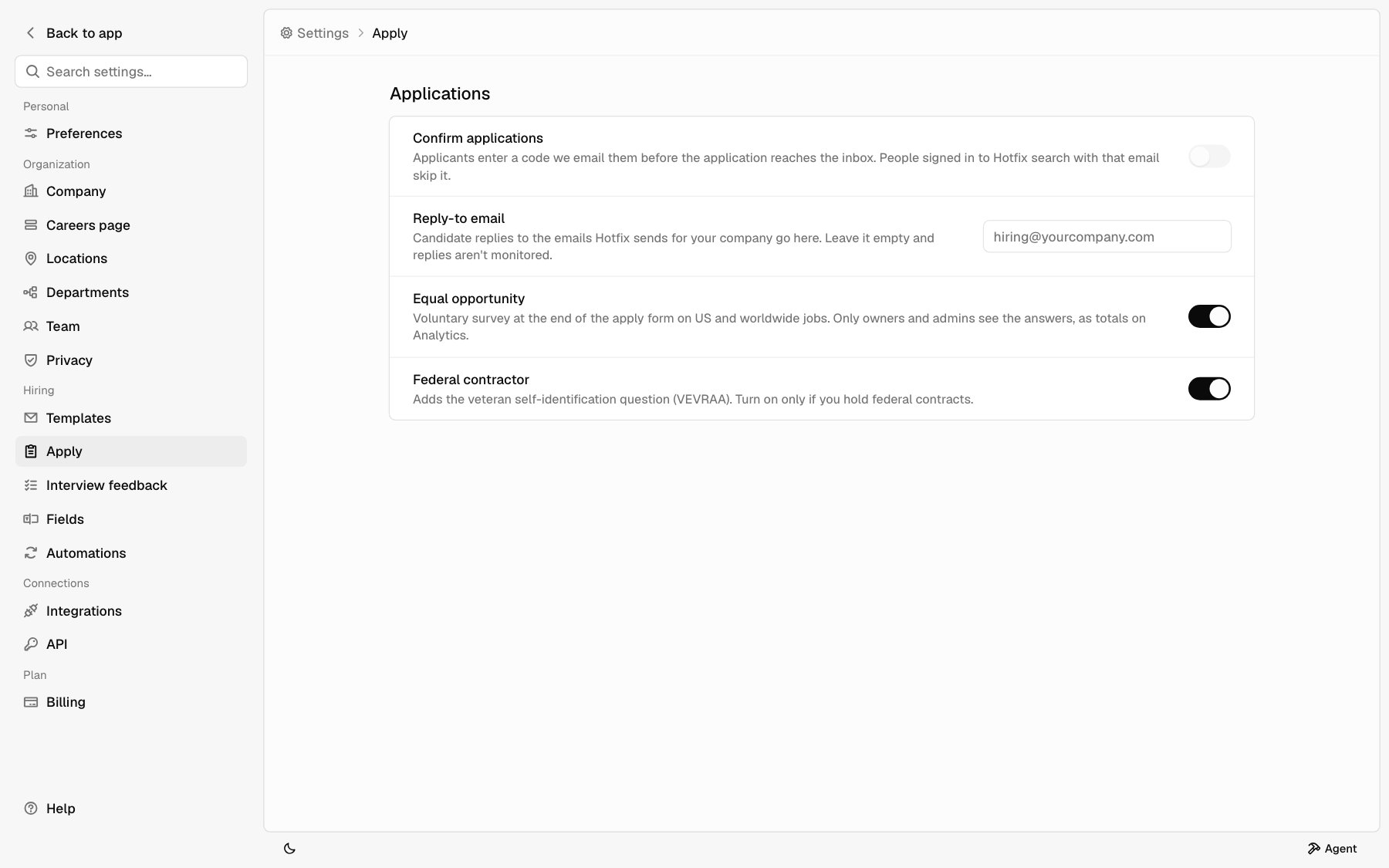
> Choose whether applicants confirm their email, where candidate replies go, and whether to ask the equal opportunity survey.
Open **Settings** > **Apply** to set how applying works for every job on your careers page. Owners and Admins can change these settings.
Apply settings need a hosted plan. Without one, the page shows **Hosted hiring only** and a **View billing** button.
Each setting saves as soon as you change it. There's no Save button.
| Setting | Starts as |
| - | - |
| **Confirm applications** | Off |
| **Reply-to email** | Empty |
| **Equal opportunity** | Off |
| **Federal contractor** | Off |
To set up the form for one job, like which details to ask for and your screening questions, see [The application form](/help/post-a-job#the-application-form).
 ## Confirm applications
Turn on **Confirm applications** to make applicants prove they own the email they applied with. It keeps fake and mistyped applications out of your inbox.
With it on, here's what an applicant sees after they submit:
The apply page shows **Check your email**. Hotfix emails the applicant a
6-digit code and a confirm link.
The applicant types the code on the apply page. The code expires in 15
minutes. The link in the email confirms too, and keeps working for 48 hours.
If the code expired or never arrived, the applicant clicks **Resend code**.
The application reaches your [inbox](/help/inbox) once the applicant confirms. Until then you don't see it. In [Analytics](/help/analytics), it counts on the day it was confirmed.
Applicants who are signed in to Hotfix search with the same email skip the code. Their application goes straight to your inbox.
### Who sends the code
Hotfix sends the code email for you. It comes from **[no-reply@hotfix.jobs](mailto:no-reply@hotfix.jobs)** and shows as your company name followed by "via Hotfix", like "Acme via Hotfix". You don't need Google Workspace connected.
## The Application received email
Everyone who applies gets an email saying you received their application. If **Confirm applications** is on, it goes out after they confirm.
The email uses your **Application received** template. Edit the wording under **Settings** > **Templates**. See [Templates](/help/templates).
Like the code email, Hotfix sends it from **[no-reply@hotfix.jobs](mailto:no-reply@hotfix.jobs)** as "your company via Hotfix". Google Workspace isn't needed.
## Reply-to email
**Reply-to email** decides where candidate replies go when they answer the emails Hotfix sends for your company: the confirmation code and the **Application received** email.
Enter an email like `hiring@yourcompany.com`.
Press Enter or click outside the box.
If the address isn't valid, you see **Enter an email like [hiring@yourcompany.com](mailto:hiring@yourcompany.com).** and nothing saves.
Leave the box empty and replies aren't monitored. The emails then end by telling candidates that replies to this address aren't monitored. With an address set, they say to reply to reach you.
Email you send from the inbox works differently. It goes out from your own
Gmail through Google Workspace, so replies come back to you there. See
[Integrations](/help/integrations).
## Equal opportunity
Turn on **Equal opportunity** to add a voluntary equal opportunity survey to the end of the apply form. It applies to every job, not one at a time.
### Which jobs show it
The survey shows on:
* Jobs in the United States, by country or by location
* Worldwide jobs, with no countries and no locations
A job set only to places outside the United States doesn't show it.
### What candidates see
A section called **Voluntary self-identification** at the end of the form. It starts with your company's equal opportunity statement and explains that the questions are voluntary, are kept apart from the application, and don't affect how it's considered.
| Question | Answers |
| - | - |
| **Gender** | Female, Male, Non-binary |
| **Race or ethnicity** | Hispanic or Latino, and six race options |
| **Veteran status** | Only with **Federal contractor** on. I identify as one or more of the classifications of protected veteran listed above; I am not a protected veteran |
The survey doesn't ask about disability.
Every question also offers **I don't wish to answer**, and every question can be left blank. Leaving them all blank doesn't stop anyone from applying.
### Federal contractor
**Federal contractor** shows under **Equal opportunity** while the survey is on. Turn it on only if you hold federal contracts. It adds the veteran self-identification question that VEVRAA asks federal contractors to offer applicants. The question uses the official Department of Labor invitation text, which starts "This employer is a Government contractor", with the definitions of each kind of protected veteran.
### Where answers show
Answers never show on the candidate record, in the inbox, or anywhere else tied to a person. Your team can't see one candidate's answers.
Owners and Admins see the totals on the **Equal opportunity** card in [Analytics](/help/analytics#equal-opportunity). The breakdown shows once at least 5 applicants have answered, so a small group can't point to a person. Gender totals show Female, Male, and **I don't wish to answer**, like the EEO-1 report. Non-binary answers count under **Not reported**.
If you turn the survey off later, answers you already collected stay in those totals. When [Privacy](/help/privacy) deletes an application, its answers stay in the totals too, with nothing that points to the person.
## Related
* [Post a job](/help/post-a-job)
* [Templates](/help/templates)
* [Analytics](/help/analytics)
* [Integrations](/help/integrations)
This documentation is built and hosted on [Mintlify](https://mintlify.com), a developer documentation platform.
## Confirm applications
Turn on **Confirm applications** to make applicants prove they own the email they applied with. It keeps fake and mistyped applications out of your inbox.
With it on, here's what an applicant sees after they submit:
The apply page shows **Check your email**. Hotfix emails the applicant a
6-digit code and a confirm link.
The applicant types the code on the apply page. The code expires in 15
minutes. The link in the email confirms too, and keeps working for 48 hours.
If the code expired or never arrived, the applicant clicks **Resend code**.
The application reaches your [inbox](/help/inbox) once the applicant confirms. Until then you don't see it. In [Analytics](/help/analytics), it counts on the day it was confirmed.
Applicants who are signed in to Hotfix search with the same email skip the code. Their application goes straight to your inbox.
### Who sends the code
Hotfix sends the code email for you. It comes from **[no-reply@hotfix.jobs](mailto:no-reply@hotfix.jobs)** and shows as your company name followed by "via Hotfix", like "Acme via Hotfix". You don't need Google Workspace connected.
## The Application received email
Everyone who applies gets an email saying you received their application. If **Confirm applications** is on, it goes out after they confirm.
The email uses your **Application received** template. Edit the wording under **Settings** > **Templates**. See [Templates](/help/templates).
Like the code email, Hotfix sends it from **[no-reply@hotfix.jobs](mailto:no-reply@hotfix.jobs)** as "your company via Hotfix". Google Workspace isn't needed.
## Reply-to email
**Reply-to email** decides where candidate replies go when they answer the emails Hotfix sends for your company: the confirmation code and the **Application received** email.
Enter an email like `hiring@yourcompany.com`.
Press Enter or click outside the box.
If the address isn't valid, you see **Enter an email like [hiring@yourcompany.com](mailto:hiring@yourcompany.com).** and nothing saves.
Leave the box empty and replies aren't monitored. The emails then end by telling candidates that replies to this address aren't monitored. With an address set, they say to reply to reach you.
Email you send from the inbox works differently. It goes out from your own
Gmail through Google Workspace, so replies come back to you there. See
[Integrations](/help/integrations).
## Equal opportunity
Turn on **Equal opportunity** to add a voluntary equal opportunity survey to the end of the apply form. It applies to every job, not one at a time.
### Which jobs show it
The survey shows on:
* Jobs in the United States, by country or by location
* Worldwide jobs, with no countries and no locations
A job set only to places outside the United States doesn't show it.
### What candidates see
A section called **Voluntary self-identification** at the end of the form. It starts with your company's equal opportunity statement and explains that the questions are voluntary, are kept apart from the application, and don't affect how it's considered.
| Question | Answers |
| - | - |
| **Gender** | Female, Male, Non-binary |
| **Race or ethnicity** | Hispanic or Latino, and six race options |
| **Veteran status** | Only with **Federal contractor** on. I identify as one or more of the classifications of protected veteran listed above; I am not a protected veteran |
The survey doesn't ask about disability.
Every question also offers **I don't wish to answer**, and every question can be left blank. Leaving them all blank doesn't stop anyone from applying.
### Federal contractor
**Federal contractor** shows under **Equal opportunity** while the survey is on. Turn it on only if you hold federal contracts. It adds the veteran self-identification question that VEVRAA asks federal contractors to offer applicants. The question uses the official Department of Labor invitation text, which starts "This employer is a Government contractor", with the definitions of each kind of protected veteran.
### Where answers show
Answers never show on the candidate record, in the inbox, or anywhere else tied to a person. Your team can't see one candidate's answers.
Owners and Admins see the totals on the **Equal opportunity** card in [Analytics](/help/analytics#equal-opportunity). The breakdown shows once at least 5 applicants have answered, so a small group can't point to a person. Gender totals show Female, Male, and **I don't wish to answer**, like the EEO-1 report. Non-binary answers count under **Not reported**.
If you turn the survey off later, answers you already collected stay in those totals. When [Privacy](/help/privacy) deletes an application, its answers stay in the totals too, with nothing that points to the person.
## Related
* [Post a job](/help/post-a-job)
* [Templates](/help/templates)
* [Analytics](/help/analytics)
* [Integrations](/help/integrations)
This documentation is built and hosted on [Mintlify](https://mintlify.com), a developer documentation platform.